

Our Verdict
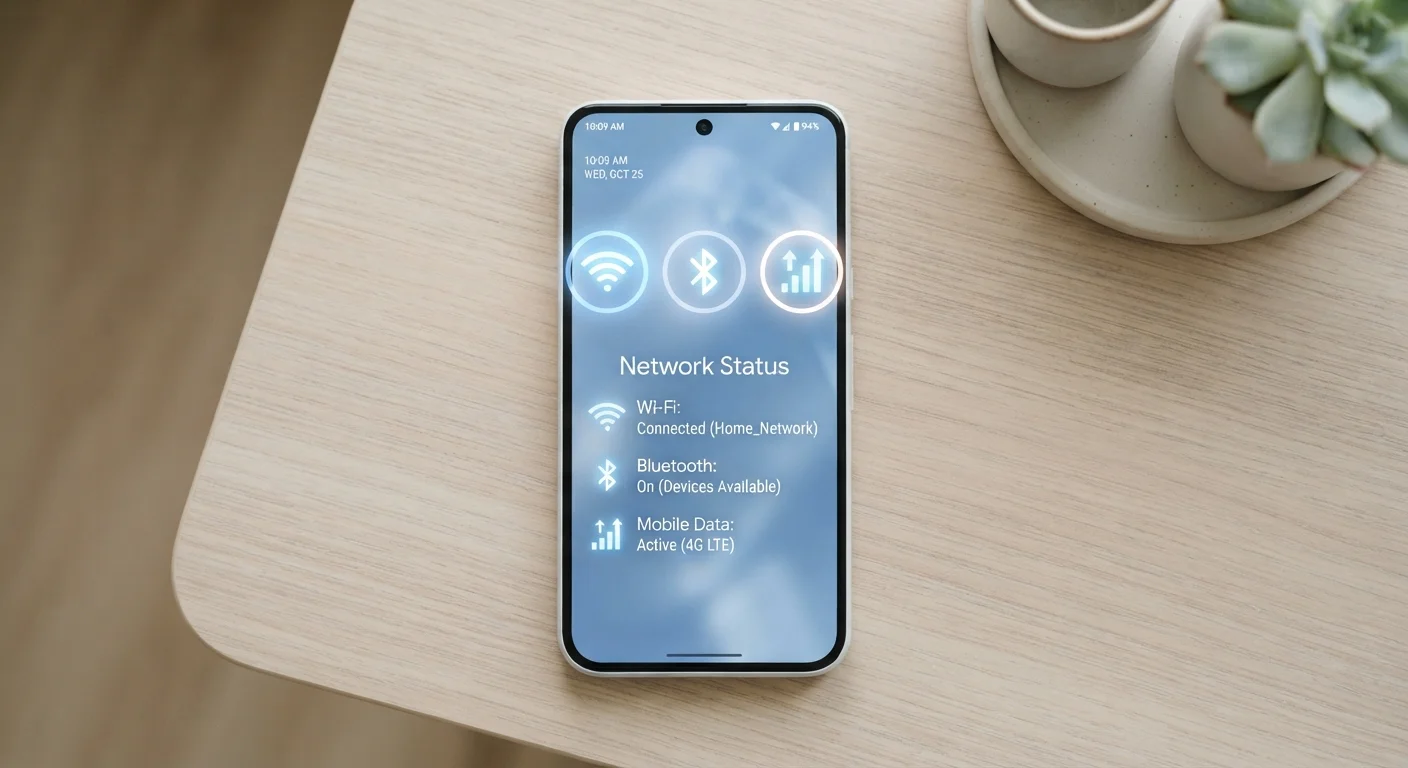
Each connection type serves a distinct purpose. Wi-Fi is the go-to for internet access at home or trusted locations. Mobile data fills in wherever Wi-Fi isn't available. Bluetooth is for linking nearby devices — headphones, speakers, smartwatches — without the internet. Understanding all three helps you stay connected efficiently and avoid unnecessary costs.
| Best for | Recommended |
|---|---|
| Browsing, streaming, and downloading at home | Wi-Fi |
| Staying online while away from home or a trusted network | Mobile Data |
| Connecting wireless accessories like headphones or speakers | Bluetooth |
| Sharing your phone's internet connection with another device | Mobile Data (via hotspot) |
What Each Connection Actually Does
Your phone has three main wireless connections built in — Wi-Fi, mobile data, and Bluetooth — and each one does something different. Confusing them is one of the most common reasons people end up with a drained battery or a surprise overage charge at the end of the month.
Wi-Fi connects your phone to the internet through a wireless router. That router is usually plugged into a modem at home or in a business. Because the data travels over your broadband connection rather than your cellular plan, it doesn't count against your monthly data allowance. For a deeper look at the hardware involved, see how routers and modems differ.
Mobile data (also called cellular data) connects you to the internet through your carrier's cell towers — the same infrastructure that handles phone calls. It works almost anywhere there's a signal, but every megabyte counts toward the data cap on your plan. For more on how plans are structured, our first-time buyer's guide to mobile plans is a good starting point.
Bluetooth is a short-range radio connection — typically effective up to about 30 feet — designed to link devices directly to each other rather than to the internet. It's how your phone talks to wireless headphones, a car audio system, or a fitness tracker. Bluetooth does not provide internet access on its own.
| Wi-Fi | Mobile Data | Bluetooth | |
|---|---|---|---|
| Primary purpose | Internet access via router | Internet access via cell towers | Device-to-device communication |
| Range | Up to ~300 ft indoors | Anywhere with cell signal | Up to ~30 ft |
| Counts against data plan | No | Yes | No |
| Typical speed | Fast (varies by plan) | Moderate to fast (varies by network) | Slow — not for internet browsing |
| Battery impact | Moderate | Higher | Low |
| Best use case | Home/office browsing and streaming | On-the-go internet access | Headphones, speakers, wearables |
When to Use Wi-Fi
Wi-Fi should be your default whenever you're at home, at work, or in any location where you trust the network. It's generally faster than mobile data for most everyday tasks — streaming video, video calls, downloading apps or updates — and it keeps your cellular data usage low.
One important exception: not every Wi-Fi network is equally safe. Open networks in public spaces — coffee shops, airports, hotel lobbies — carry more risk than a password-protected home network. Our guide to public Wi-Fi explains what kinds of tasks are safer to save for a private connection.
Set Your Phone to Prefer Wi-Fi Automatically
Both iPhone and Android devices will automatically switch to Wi-Fi when a saved network is in range. Make sure your home and work networks are saved so your phone connects without you having to think about it. This is the single easiest way to keep your mobile data usage in check.
If you're wondering whether a wired connection at home might serve you better than Wi-Fi, our Wi-Fi vs. Ethernet comparison walks through the trade-offs.
When to Use Mobile Data
Mobile data is your lifeline when Wi-Fi isn't available or isn't trustworthy. Navigation while driving, checking messages between destinations, or browsing when you're out and about — these are the situations mobile data is built for.
The key is to be mindful of what you're doing on mobile data. Streaming video, downloading large files, and automatic app updates are the biggest consumers of data. If your plan has a limited monthly allowance, it pays to set apps to update only on Wi-Fi and to download music or podcasts before you leave the house.
Mobile data speeds can vary significantly depending on coverage and network technology. To understand what 5G, LTE, and other labels actually mean for day-to-day use, see our plain-language breakdown of data speeds.
Watch Out for Background Data Usage
Many apps continue using mobile data in the background even when you're not actively using them. Social media apps, email clients, and streaming services are common culprits. Check your phone's data usage settings periodically to see which apps are consuming the most — and restrict background data for any that don't need it.
When to Use Bluetooth
Bluetooth is the connection to reach for when you want two nearby devices to communicate directly — no internet required. Everyday uses include:
- Wireless headphones or earbuds
- Portable speakers
- Hands-free calling in a car
- Smartwatches and fitness trackers
- Wireless keyboards and mice (learn how wireless peripherals compare to wired)
Bluetooth uses very little power compared to Wi-Fi, but it does still draw on your battery — especially if multiple devices are paired and active at once. When you're not using any Bluetooth accessories, turning it off can marginally extend your battery life.
One thing Bluetooth cannot do is give a device internet access on its own. If you want to share your phone's internet connection with a laptop, for example, you'd use your phone's mobile hotspot feature (which runs over mobile data) rather than Bluetooth.
If you come across unfamiliar terms in your phone's settings — like NFC or VoLTE alongside Bluetooth — our settings screen decoder can help clarify what each option does.
Practical Tips for Switching Between Connections
Most smartphones handle some of this automatically — your phone will usually prefer Wi-Fi over mobile data when both are available. But a few habits can help you stay in control:
- Check your Wi-Fi status before streaming. It's easy to assume you're on Wi-Fi when you've actually wandered out of range.
- Set large downloads to Wi-Fi only. Both Android and iOS have settings that restrict app updates and cloud backups to Wi-Fi.
- Turn off Bluetooth when not in use. Particularly useful if you're trying to extend battery life during a long day out.
- Use mobile data as a backup, not a primary connection. If your home Wi-Fi goes down, mobile data can bridge the gap — but keep an eye on usage.
- Review your plan's data limits. Before committing to a plan, use this checklist to make sure the data allowance matches your actual habits.
Understanding these three connections puts you in a much stronger position to manage your phone's performance and avoid unexpected costs — without needing to be a tech expert to do it.
The content on this site is for informational purposes only and is not a substitute for professional advice. Always consult a qualified professional for guidance specific to your situation.