

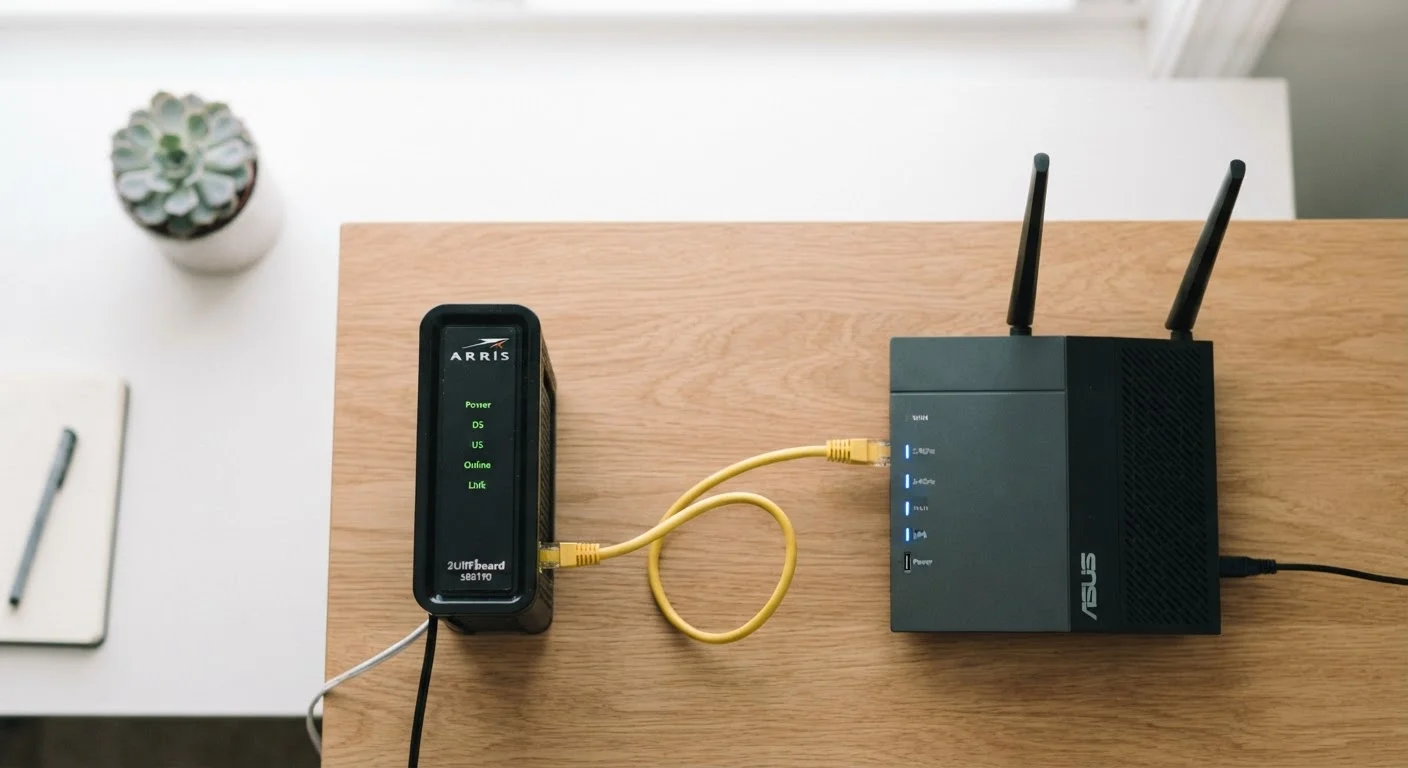
What a Modem Actually Does
The word modem is short for modulator-demodulator — a clue to its original purpose of converting digital data into analog signals and back again. In modern home internet setups, the core job remains the same: the modem is the device that maintains a live connection with your internet service provider (ISP).
Think of the modem as your home's front door to the internet. The physical cable running into your home — whether it's a coaxial cable from a cable provider, a phone line for DSL, or a fiber-optic line — plugs directly into the modem. The modem authenticates with your ISP and receives the internet signal, translating it into a standard format that other networking equipment can understand.
On its own, a modem gives you one internet connection — enough for a single device plugged in via ethernet. That's where the router comes in. For more background on the different types of internet connections that feed into your modem, see our guide on fiber, cable, and DSL differences.
What a Router Actually Does
Once the modem has delivered an internet connection into your home, the router takes over. Its job is to distribute that single connection to every device in your household — your laptop, phone, smart TV, tablets, and any smart home gadgets — all at the same time.
Routers do this by creating a local network, often called a LAN. Each device on that network gets its own internal address (an IP address), and the router manages the traffic flowing between them and the wider internet. Most modern routers broadcast Wi-Fi signals so devices can connect wirelessly, though they also include physical ethernet ports for wired connections.
1
Devices a modem alone can connect at once
A modem without a router provides a single internet connection point, requiring a router to share access across multiple devices.
~25+
Devices a typical home router can support
Modern consumer routers are designed to handle numerous simultaneous connections, accommodating the growing number of smart devices in US households.
$10–$15/mo
Typical ISP modem/gateway rental fee
Many US internet providers charge a monthly equipment rental fee, making it worth understanding whether you can use your own compatible hardware.
Routers also provide a basic layer of security by acting as a barrier between the public internet and your private home network. Features like firewalls and network address translation (NAT) are built into virtually every consumer router sold today.
The Gateway: When Both Are in One Box
Many ISPs supply customers with a single device called a gateway — a combined modem and router in one unit. If you signed up for internet service and received one box that handles everything, you likely have a gateway.
ISP Rental Equipment: What to Know
When your ISP provides a gateway, it remains their property and they are responsible for certain types of support and updates. If you choose to buy your own modem or router, you take on responsibility for compatibility and troubleshooting those devices yourself. Always confirm with your ISP which equipment is supported on your specific plan before making changes.
Gateways are convenient and reduce cable clutter, but they come with trade-offs. The router portion of a gateway may be less capable than a dedicated router, and you're often paying a monthly rental fee to the ISP. Some households choose to use the ISP gateway in "bridge mode" (which disables its router functions) and connect their own router for better performance and control.
Not sure what equipment you have? Check the back of the device: if it has both a coaxial or phone-line port and multiple Wi-Fi antenna indicators or ethernet ports, it's almost certainly a gateway. Our related article on what routers, modems, and gateways actually do goes deeper on this topic.
Why the Distinction Matters for Troubleshooting
Knowing which device does what makes diagnosing internet problems much faster. When something goes wrong, you can ask: is this a modem problem (no connection from the ISP) or a router problem (ISP signal is fine, but devices can't connect)?
Quick Fix: Restart in the Right Order
When troubleshooting a lost connection, always restart the modem first. Unplug it, wait 60 seconds, then plug it back in and let it fully reconnect before restarting your router. Doing it in the wrong order — or restarting both simultaneously — can result in the router failing to pick up the refreshed modem connection.
A quick way to test: plug a laptop directly into the modem using an ethernet cable. If the internet works, the modem is fine and the issue is with your router or Wi-Fi. If it still doesn't work, the problem is likely between the modem and your ISP — worth calling your provider's support line.
This knowledge also helps when you're setting up or upgrading your home network. If you're ready to take the next step, our walkthrough on setting up a home network covers the process from start to finish. And if you're brand new to all of this, getting online for the first time is a great place to start.
Frequently Asked Questions
Yes, in most home setups you need both functions covered. You can use two separate devices or a single gateway that combines them. Without modem functionality, you can't receive internet from your ISP; without router functionality, only one device can be connected at a time.
A gateway is a single box that performs both modem and router functions. ISPs frequently supply gateways as rental equipment. They're convenient but may offer less flexibility than using two separate, dedicated devices.
In many cases, yes — buying a compatible modem can eliminate a monthly rental fee. However, you must confirm compatibility with your ISP and connection type (cable, DSL, or fiber) before purchasing. Fiber connections in particular often require ISP-owned equipment.
Slow Wi-Fi is often a router issue rather than a modem issue. Router placement, interference from other devices, the number of connected devices, and outdated router hardware can all reduce speeds. Try restarting your router and moving it to a more central location.
Restart the modem first and wait about 60 seconds, then restart the router. This sequence ensures the modem re-establishes a clean connection with your ISP before the router tries to distribute it to your devices.
Not exactly. A router is a physical device, while Wi-Fi is the wireless technology the router uses to communicate with your devices. A router can also share internet via wired ethernet cables — Wi-Fi is just one of the ways it does its job.
The content on this site is for informational purposes only and is not a substitute for professional advice. Always consult a qualified professional for guidance specific to your situation.