

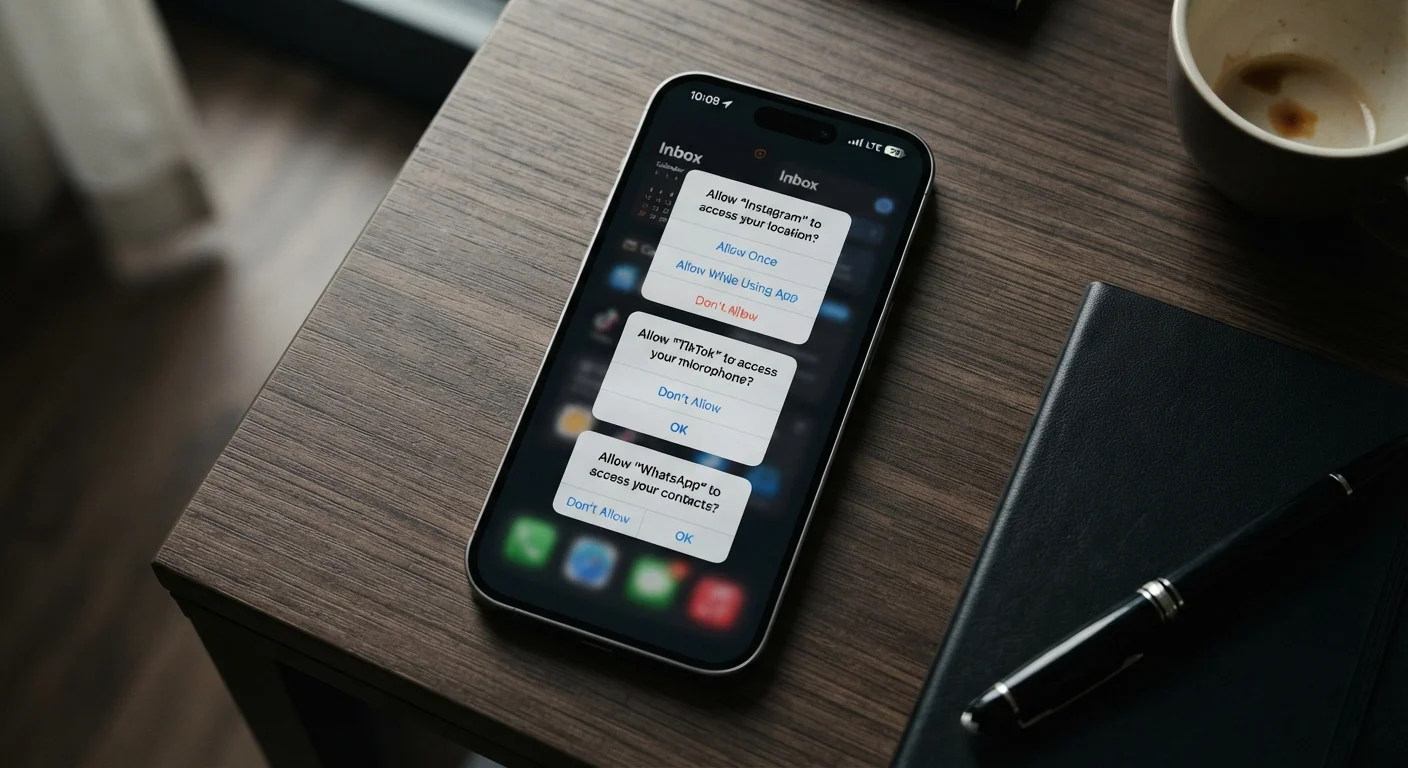
The Real Reason Apps Keep Asking
Every time you download an app and open it for the first time, you're likely to see a series of pop-ups asking whether the app can access your camera, know your location, read your contacts, or listen through your microphone. It can feel invasive - or just tedious. But understanding why these requests appear makes it much easier to decide what to allow.
Apps ask for permissions because your phone's operating system blocks them from accessing sensitive features by default. An app can't quietly read your contacts list or turn on your camera without your explicit go-ahead. The permission system exists to put that choice in your hands. The problem is that many apps ask for more than they strictly need - either for genuinely useful features you might not have discovered yet, or for data collection that benefits the developer more than you.
Understanding what's reasonable starts with matching the request to the app's purpose. A navigation app asking for location access makes obvious sense. A recipe app asking for the same thing is worth a second look - though it might be powering a "find ingredients near me" feature you've never used.
Common Permissions and What They Actually Unlock
Most permission requests fall into a predictable set of categories. Here's what each one actually means in practice:
- Location: Lets the app know where you are, either while it's open or continuously in the background. Used legitimately by maps, weather, and delivery apps. Background location access is the most privacy-sensitive option.
- Camera: Allows the app to take photos or scan items using your phone's camera. Video calling, document scanning, and QR code apps need this. A to-do list app probably doesn't.
- Microphone: Enables the app to record audio. Voice assistants, note-taking apps, and video call tools have clear use cases. Games or shopping apps requesting microphone access deserve scrutiny.
- Contacts: Gives the app read access to your address book. Messaging and calling apps use this to show you people you know. When social media apps ask, they may be using it to suggest connections - or build a profile of your network.
- Notifications: Lets the app send alerts to your lock screen and notification center. Unlike the others, this doesn't expose personal data, but it does affect your attention. See how to manage notification overload for practical guidance.
- Bluetooth/Nearby Devices: Enables the app to detect or connect to other devices nearby. Legitimate for speakers, wearables, and smart home apps - less obvious in most other contexts.
Start With 'Deny' - Then Reassess
When in doubt, tap 'Don't Allow' on a new permission request. If a feature you want to use requires that permission, the app will prompt you again with more context about why. This approach lets you grant permissions intentionally rather than reactively, and most apps handle it gracefully.
When a Request Is Reasonable - and When It Isn't
The clearest way to evaluate a permission request is to ask: does this feature make the app work better for me, or does it just give the app more data about me? Those aren't always mutually exclusive, but the distinction matters.
A good rule of thumb: start by denying permissions you're unsure about. Most apps will still function for their core purpose. If you tap a feature and the app explains it needs a specific permission to work, you can grant it then - with full context about why. This "just-in-time" approach keeps you in control without sacrificing functionality.
For pre-installed apps on your phone, the same logic applies. Your phone's built-in apps often request permissions during setup, and it's worth reviewing those too - especially if you've never used a particular built-in feature.
How to Review and Adjust Permissions You've Already Granted
You don't have to make the right call the moment a permission dialog appears. Both iOS and Android let you revisit every permission decision at any time.
On an iPhone, navigate to Settings > Privacy & Security. Each category (Camera, Microphone, Location Services, and so on) shows every app that has requested that permission and what level of access you've granted. You can change or revoke access with a tap.
On Android, go to Settings > Privacy > Permission Manager. The layout varies slightly by manufacturer, but the same permission-by-permission view is available. Android also periodically notifies you if an app has been using a sensitive permission in the background without recent activity - a useful check.
It's worth doing a quick audit a few times a year, especially after installing new apps or updating existing ones. App updates occasionally request new permissions, and those changes can slip past unnoticed. The goal isn't to grant nothing - it's to make sure what you've granted still reflects a choice you'd make today. For a broader look at your app habits, reviewing what your apps are quietly doing is a worthwhile exercise.
45%
Apps requesting more permissions than needed
Research published by security analysts has consistently found that a significant share of apps on major app stores request permissions beyond what their stated functionality requires.
3 in 4
Smartphone users who never review app permissions
Surveys on mobile privacy behavior indicate that most users accept permission requests without revisiting or auditing them after initial setup.
Frequently Asked Questions
Usually yes, at least partially. Denying location access to a weather app means it can't auto-detect your city, but you can still enter your location manually. Denying a permission outright and seeing what breaks is a reasonable first step.
It almost certainly doesn't. A simple flashlight only needs access to the camera flash. Requests for microphone, contacts, or location from a basic utility app are a red flag worth taking seriously - consider whether you trust the app's developer.
'While using' means the app can only read your location when it's open on screen. 'Always' allows it to track your location in the background, even when you're not actively using the app. For most apps, 'while using' is sufficient.
They can, depending on the app's privacy policy. Many apps share data with advertising networks or analytics services. Reading the app's privacy policy - available in its App Store or Play Store listing - tells you what data is collected and with whom it's shared.
On iPhone, go to Settings > Privacy & Security to see permissions grouped by type (e.g., all apps with camera access). On Android, go to Settings > Privacy > Permission Manager for a similar view. You can revoke access at any time from either screen.
Not automatically. Each permission should make sense for what the app does. Granting broad permissions to many apps increases the surface area for data collection and potential misuse. Treat permission requests the way you'd treat a stranger asking for your house key - context matters.
The content on this site is for informational purposes only and is not a substitute for professional advice. Always consult a qualified professional for guidance specific to your situation.