

The App Accumulation Problem
It's a familiar cycle: you feel disorganized, search for a solution, download a new app, set it up enthusiastically, and then abandon it two weeks later. Meanwhile, your phone fills up with half-used tools, and the original problem remains unsolved.
The issue usually isn't a lack of software. Most devices - whether iPhone, Android, Mac, or Windows PC - ship with a capable suite of built-in apps covering notes, calendars, file storage, reminders, and email. The gap is almost always in how those tools are used, not which tools you have. Check out what your phone's pre-installed apps can actually do before reaching for something new.
Best Practices for Staying Organized With What You Have
These practices apply whether you're on iOS, Android, Windows, or macOS. The goal is to get more out of familiar tools rather than add complexity.
Use one notes app consistently and stop splitting notes across multiple tools.
Having ideas in three different apps - voice memos, a notes app, and random email drafts - guarantees you'll lose things. A single home for all notes means you always know where to look. Most built-in notes apps (such as Apple Notes or Google Keep) support folders, tags, and search, making them more capable than they first appear.
Create a simple, three-level folder structure for files and stick with it.
Complex filing systems collapse because they're too hard to maintain under pressure. A shallow hierarchy - broad category, sub-category, and file - is fast to navigate and easy to enforce. Consistency matters more than perfection.
Set up email filters or rules to sort incoming messages automatically.
Inbox clutter is almost always a filtering problem, not a volume problem. Every major email client - Gmail, Outlook, Apple Mail - lets you create rules that move, label, or archive messages the moment they arrive, without any manual action.
Sync your existing apps across all your devices before adding new ones.
A common frustration is that notes or calendar events made on one device don't appear on another. This is almost always a sign-in or sync setting issue, not a limitation of the app itself. Fixing it removes one of the most cited reasons for switching to a new tool.
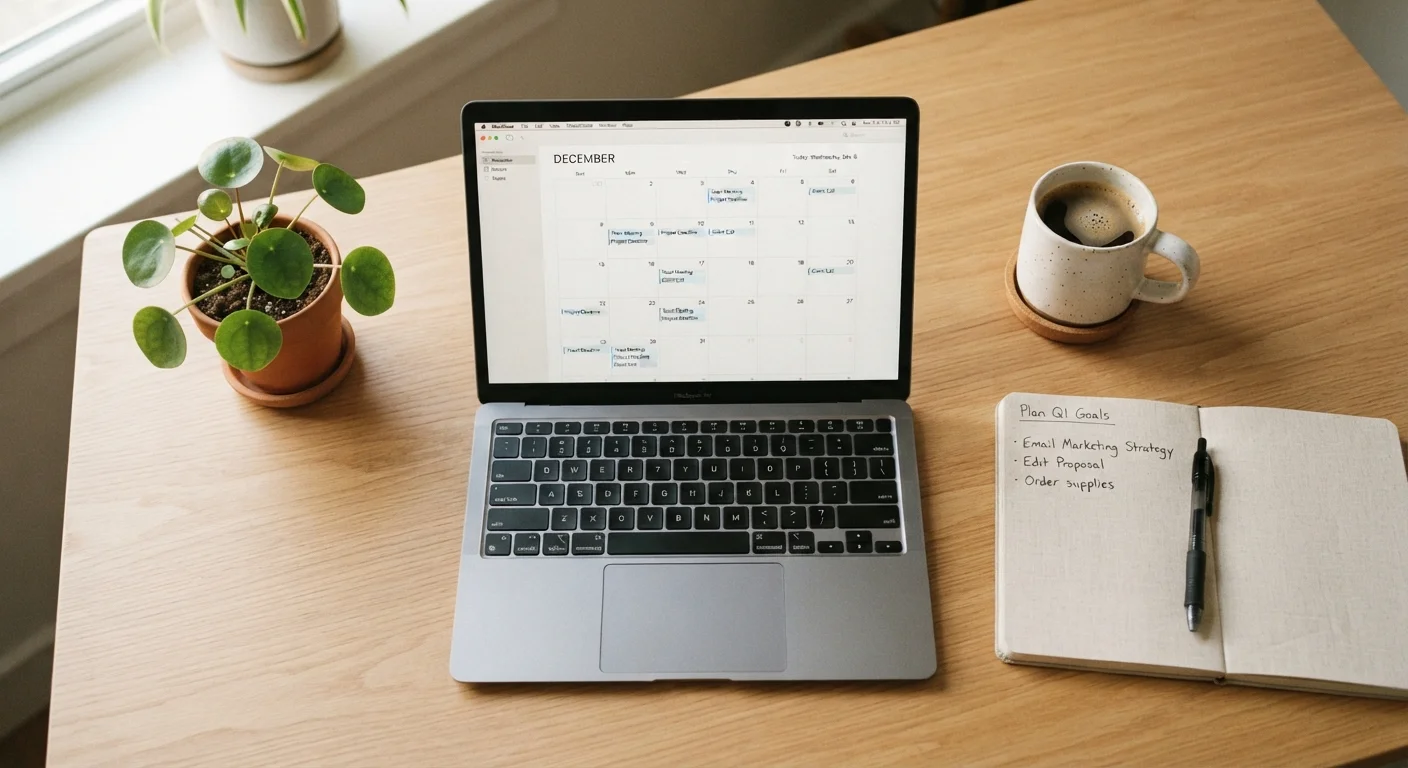
Use your calendar as a single source of truth for commitments and deadlines.
When reminders live in texts, sticky notes, and email threads simultaneously, things fall through the cracks. Logging every commitment - including personal ones - into one calendar app means you only need to check one place. Color-coding by category (work, personal, health) adds clarity without adding apps.
Start Today: Low-Effort, High-Impact Actions
You don't need a free afternoon to overhaul your digital habits. These quick wins take under ten minutes each and produce results you'll notice immediately.
Where Files and Storage Fit In
One common reason people download extra apps is confusion about where their files actually live. Documents saved to your desktop, photos backed up to the cloud, and downloads sitting in a default folder can all feel disconnected - but they're usually part of one ecosystem you already have access to.
Understanding how cloud and local storage work together helps you use your existing storage tools more deliberately instead of duplicating them. Most operating systems let you create a simple top-level folder structure - something like Work, Personal, and Archive - and that three-folder backbone is enough for most people's needs.
If notifications from your existing apps feel like part of the noise, that's worth addressing on its own. Disabling alerts for low-priority apps is one of the fastest ways to reclaim focus - see how to sort useful notifications from interruptions for a practical breakdown.
This article provides general technology guidance for informational purposes only. App features and availability may vary by device, operating system version, and region.
The content on this site is for informational purposes only and is not a substitute for professional advice. Always consult a qualified professional for guidance specific to your situation.