

Where Your Files Actually Live
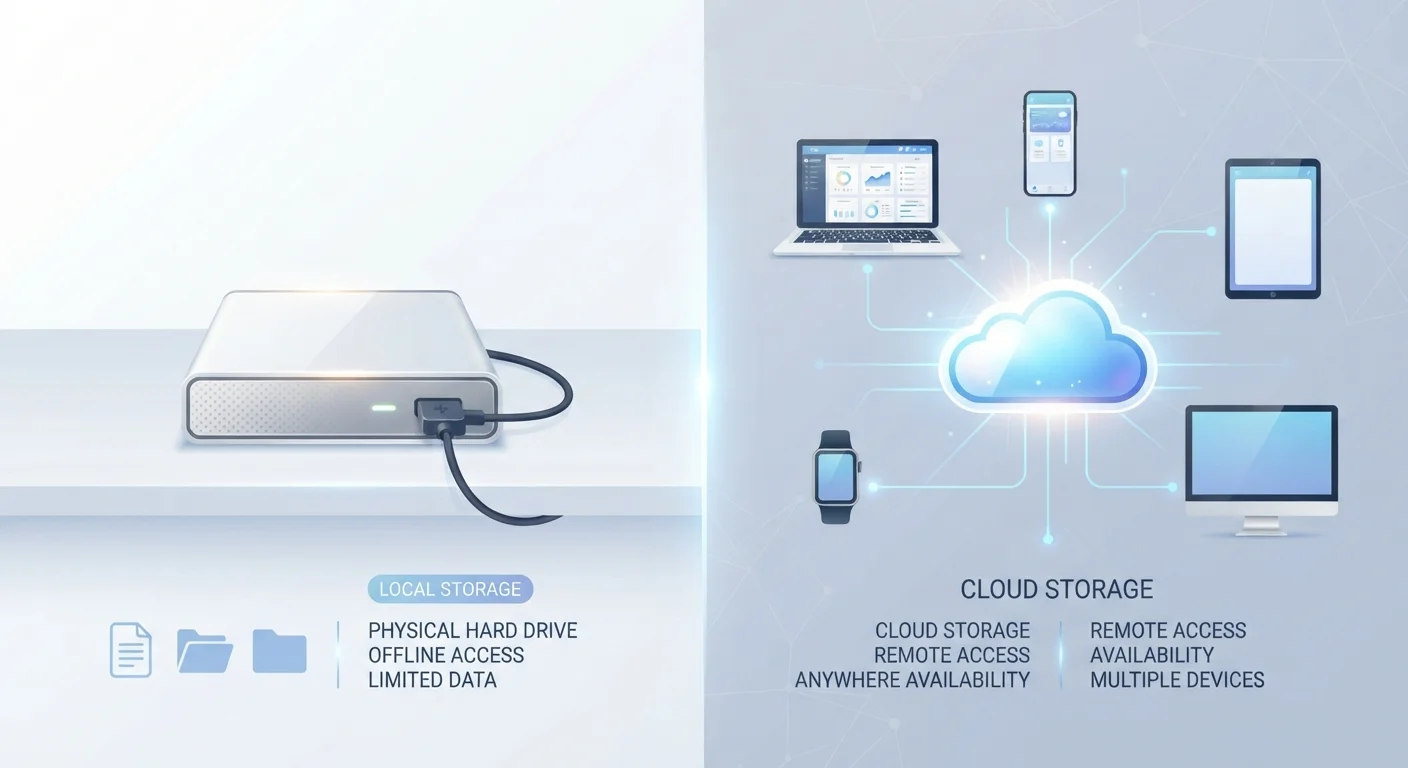
Every file you create - a photo, a document, a downloaded song - has to live somewhere. That somewhere is either local storage (on your device itself) or cloud storage (on servers you connect to over the internet).
Local storage includes your laptop's hard drive, your phone's internal memory, or an external drive plugged into your computer. Files saved here are available instantly, with no internet required. The trade-off: if your device breaks, gets stolen, or is simply left at home, those files aren't reachable.
Cloud storage works differently. When you save a file to Google Drive, iCloud, or OneDrive, it travels over the internet to a remote server. You can then access it from any device with your login credentials. This convenience comes with a dependency - you need a working internet connection to reach cloud-only files. To understand how this fits into the bigger picture of your devices, see our explainer on RAM vs. storage.
Real-Life Scenarios: Which Type Is Working?
You're already using both types of storage, likely without labeling them. Here's how they show up in everyday situations:
The line between the two can blur. Many apps - like the Photos app on a smartphone - keep a local copy of recent files while uploading everything to the cloud in the background. Understanding which mode is active helps you avoid surprises, like discovering a file you edited on your laptop hasn't appeared on your phone yet.
The Hybrid Reality: Most People Use Both
Choosing between local and cloud storage isn't really an either/or decision. A practical setup for most people looks something like this:
- Important documents and photos backed up to the cloud automatically
- Working files (current projects, frequently used apps) stored locally for speed
- An external drive or secondary location for a separate backup of critical data
Check Where Auto-Save Is Sending Your Files
Many apps save to the cloud by default without making it obvious. In apps like Microsoft Office or Apple Pages, check the save location before assuming a file is stored locally. Knowing where your files land prevents confusion when switching devices or working offline.
This layered approach is sometimes called the 3-2-1 rule: three copies of your data, on two different types of storage, with one copy offsite (which cloud storage fulfills). It's a guideline used widely in data management, not a guarantee of protection, but it's a useful framework.
Syncing and backing up play a related but distinct role in all of this. Our article on the real difference between syncing and backing up explains why having both matters.
Privacy and Security Considerations
Storing files in the cloud means a third party holds them on your behalf. Most major services encrypt data both during transfer and while stored on their servers, but the specifics vary by provider. Reading a service's privacy policy - even a summary version - can tell you whether your files are scanned, shared, or used in any way.
60%+
Adults using at least one cloud service
Surveys consistently show a majority of U.S. adults actively use cloud-based storage or services such as email, photo backup, or document editing.
3-2-1
Copies, storage types, offsite locations
The 3-2-1 backup rule is a widely referenced framework in IT data management for reducing the risk of total data loss.
For personal files that feel sensitive - financial records, medical documents, private photos - it's worth considering what level of cloud exposure you're comfortable with. You're not required to store everything in the cloud. You can be selective.
For a broader foundation on this topic, the guide on digital privacy from scratch is a practical starting point. If you want to go deeper, Online Privacy: The Complete Picture covers how data is collected and what risks exist in more detail.
Getting More From the Storage You Already Have
Before paying for more cloud storage or worrying about running out of space, it helps to understand what's already taking up room. On most devices:
- The operating system and pre-installed apps consume a fixed amount of local storage you can't reclaim
- Downloaded media - video, music, podcasts - tends to be the biggest variable consumer
- App caches (temporary files apps store for speed) can be cleared without losing important data
Cloud services often offer a free storage tier that's enough for documents and a modest photo library. If you find yourself constantly managing storage, the issue may be organizational rather than capacity. The guide on organizing your digital life without new apps has practical suggestions for getting more from what you already have.
Frequently Asked Questions
Reputable cloud services use encryption to protect your files in transit and at rest. That said, no system is completely risk-free. Using strong, unique passwords and enabling two-factor authentication significantly improves your security. For sensitive documents, consider what you're comfortable storing online.
Without internet, you generally cannot access cloud-only files. However, many cloud services let you mark specific files or folders for offline access, downloading a local copy to your device. Check your app's settings to enable this option before you need it.
Not necessarily. Files stored purely in the cloud don't take up local space. However, apps like Google Drive or Dropbox may cache recently opened files locally. Some services offer an option to free up local space by storing files online-only.
Cloud storage is primarily about access - reaching your files from anywhere. Backing up is about protection - keeping a separate copy in case your originals are lost or corrupted. They overlap but aren't the same thing, and ideally you'd do both.
Yes. Even if most of your files live in the cloud, your device still needs local storage for its operating system, apps, and any offline content. Devices with less built-in storage can fill up quickly, especially with photos and video.
The content on this site is for informational purposes only and is not a substitute for professional advice. Always consult a qualified professional for guidance specific to your situation.