

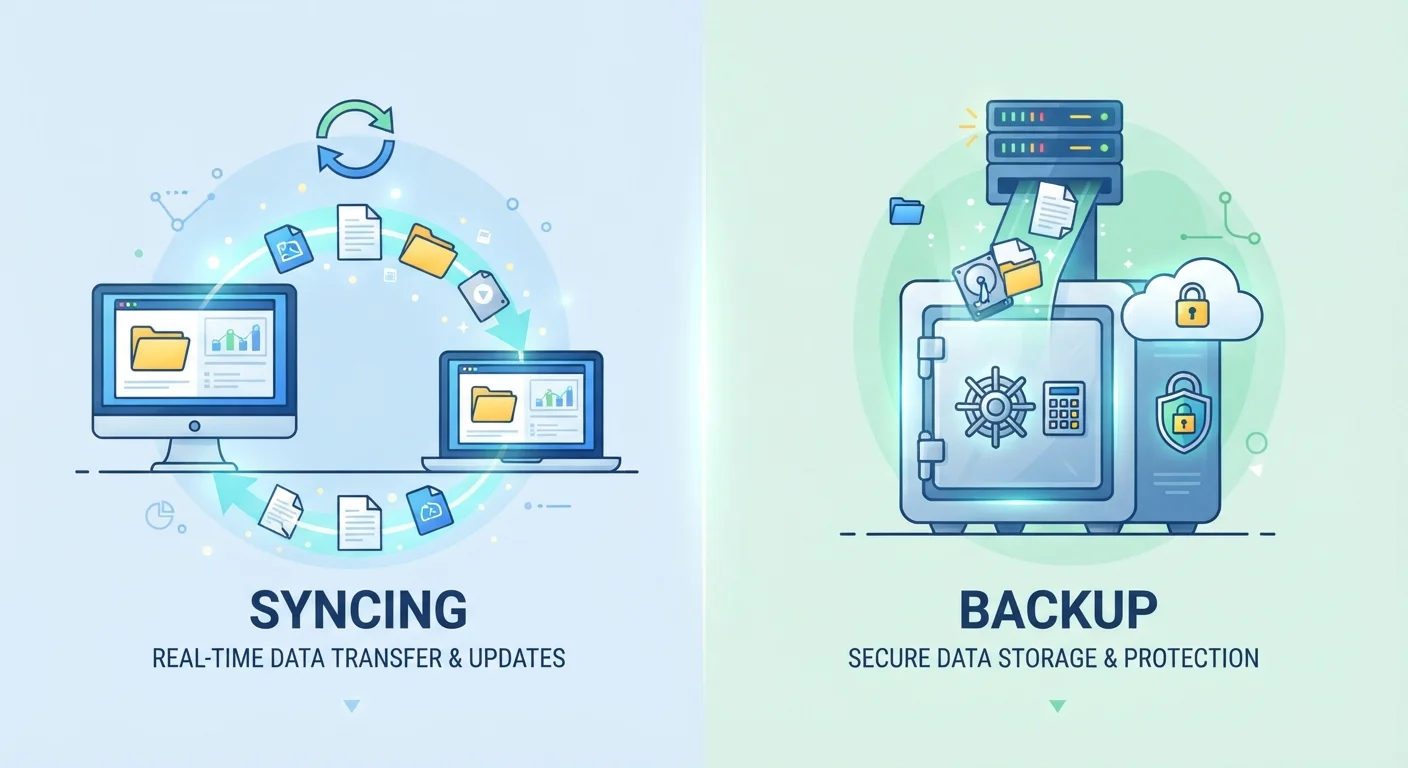
Option A
Syncing
The always-current, cross-device mirror.
Best for: People who work across multiple devices and need their files, contacts, or settings to stay consistent everywhere in real time.
Option B
Backing Up
The safety net that preserves what matters.
Best for: Anyone who wants a recoverable copy of their data in the event of accidental deletion, device failure, or ransomware.
What Syncing Actually Does
Syncing is about consistency. When you save a document on your laptop and it appears moments later on your phone, that's syncing at work. The service - whether it's iCloud, Google Drive, Dropbox, or OneDrive - keeps a matching copy of your files across every connected device, updating them automatically whenever something changes.
The key word is mirror. Syncing reflects your current state everywhere. That's incredibly convenient, but it comes with a critical limitation: if you delete or corrupt a file, the sync propagates that change too. Accidentally delete a folder on your laptop? Within seconds, it's gone from your phone and tablet as well. The sync did exactly what it was designed to do - it just mirrored a mistake instead of a good save.
Most cloud storage services are primarily sync tools. Understanding where your files actually live is worth a closer look - see our plain-language explainer on cloud and local storage for a clearer picture.
| Criterion | Syncing | Backing Up |
|---|---|---|
| Primary purpose | Keep files current across devices | Preserve a recoverable data snapshot |
| Updates automatically | Yes, in real time | On a schedule or manually |
| Protects against accidental deletion | No - deletes everywhere | Yes - restore from prior copy |
| Protects against ransomware | No - propagates corruption | Yes, if backup is isolated |
| Requires separate storage | No | Yes |
| Covers full device settings | Rarely | Yes, with full device backup |
| Common examples | iCloud Drive, Google Drive, Dropbox | Time Machine, phone backup, external drive |
What Backing Up Actually Does
A backup is a point-in-time copy of your data stored somewhere separate from the original. The defining feature is that it stays put. If you back up your files on Monday and accidentally delete something on Wednesday, you can reach back to that Monday snapshot and restore what was lost.
True backups are intentionally independent from your working files. They may live on an external hard drive, a dedicated backup service, or a separate cloud account - but they're not automatically updated every time you change something. That deliberate separation is what makes them a genuine safety net rather than just another live copy.
A common misunderstanding is treating cloud sync as a backup. Services like iCloud Photos do retain recently deleted items for a limited window - typically 30 days - but that's not the same as a structured, restorable backup of your entire device. If you're preparing to switch devices, a proper backup is essential; our guide on setting up a new phone without losing what matters walks through what to check first.
Side-by-Side: How They Handle Real Scenarios
The difference becomes clearest when something goes wrong. Consider three everyday situations:
- Accidental deletion: Syncing removes the file everywhere. A backup lets you restore it.
- Ransomware attack: Syncing can propagate encrypted, unusable files across all devices. An offline or versioned backup provides a clean restore point.
- New device setup: Syncing restores your current files quickly, but a full device backup also restores app data, settings, and configurations that sync alone may miss.
Neither tool is universally superior - they're built for different jobs. Syncing optimizes for access; backing up optimizes for recovery.
30%
PC users who have never backed up data
Surveys by Backblaze and similar cloud storage providers have consistently found that a substantial share of computer users have no backup routine at all.
30 days
Typical deleted-file retention in cloud sync services
Most major cloud sync platforms - including iCloud and Google Drive - hold deleted items in a recoverable state for approximately 30 days before permanent removal.
3-2-1
Copies, storage types, and offsite locations recommended
The 3-2-1 backup rule - three copies, two media types, one offsite - is a widely cited standard among data recovery professionals and IT organizations.
Building a Simple, Practical Strategy
For most people, the right approach combines both. Use syncing for everyday file access across your devices - it's low-effort and built into most platforms already. Layer a separate backup on top for genuine protection.
A widely recommended framework is the 3-2-1 rule: keep three copies of your data, on two different types of storage, with one copy stored offsite (such as in a separate cloud service or a drive kept at a different location). You don't need to be technical to follow this - even backing up your phone to your computer weekly, while letting iCloud or Google sync your photos daily, covers the basics.
If you're planning a device switch, don't rely on sync alone. The step-by-step walkthrough for switching phones explains how to verify your backup before you start. A few minutes of preparation can prevent hours of recovery headaches.
The content on this site is for informational purposes only and is not a substitute for professional advice. Always consult a qualified professional for guidance specific to your situation.