

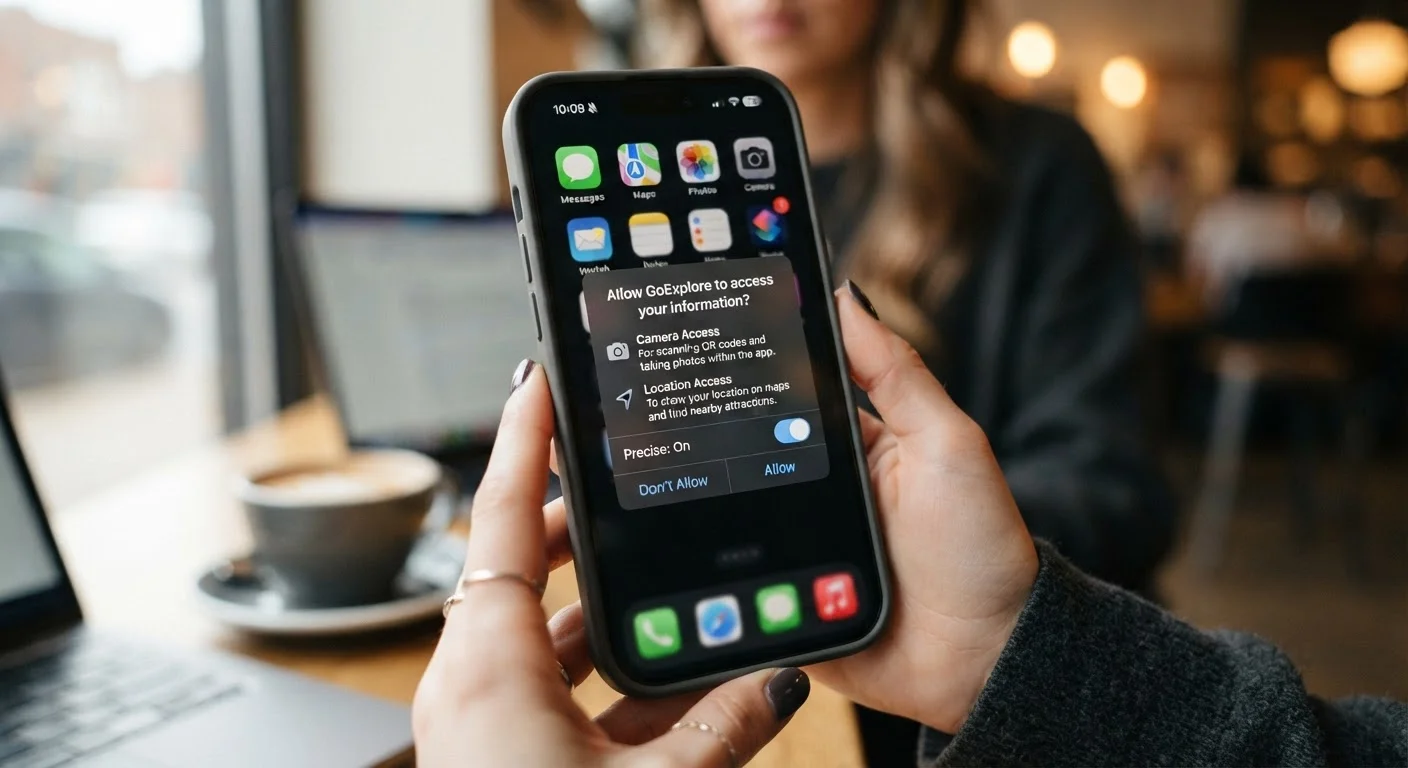
What App Permissions Actually Are
Every app on your phone operates within boundaries set by your phone's operating system. When an app wants to step outside its own lane — say, to snap a photo or find your location — it has to ask. That ask is a permission request, and the pop-up dialog you see when you first open a new app is your phone surfacing that request so you can decide.
Think of permissions as a set of keys. Your phone's camera, microphone, contacts list, and location data are all locked rooms. An app can't enter any of them unless you hand over the right key. Denying a request doesn't break the app — it just keeps that particular door closed.
Understanding these prompts is a core part of smartphone literacy. If you've ever wondered what else your phone's Settings screen is telling you, the guide to common Settings screen terms can help decode the surrounding language.
Permissions Vary by Operating System
Android and iOS handle permissions similarly in principle, but the specific options and menus differ. Apple's iOS tends to offer more granular controls for certain categories (like photo library access), while Android's Permission Manager provides a broad, category-first view. The concepts in this article apply to both platforms, though exact steps will vary by device and software version.
The Most Common Permission Types and What They Mean
Here's a plain-language breakdown of the permissions you'll encounter most often:
- Camera: Lets the app take photos or record video. Expected for camera or video-call apps. Unusual for a to-do list or flashlight app. For tips on getting the most from your phone camera itself, see this practical camera guide.
- Microphone: Lets the app record audio. Reasonable for voice memo, video-call, or voice-assistant apps.
- Location: Shows the app where you are. Maps and navigation need it; many other apps request it for ad targeting rather than functionality.
- Contacts: Gives the app your address book. Messaging apps use this to find people you know. Unrelated apps generally shouldn't need it.
- Photos/Media: Allows the app to read or upload images stored on your device.
- Notifications: Lets the app send alerts to your screen. You can grant this selectively — not every app needs to interrupt you.
- Bluetooth & Wi-Fi: Some apps request these to enable features like nearby device pairing or local network access. To understand how these connections work more broadly, see Bluetooth, Wi-Fi, and Mobile Data explained.
45%
Apps requesting more permissions than needed
Research from app analysis firms has found that a significant share of popular mobile apps request permissions beyond what their core features require.
3 in 4
Smartphone users who rarely review app permissions
Survey data from consumer privacy research groups suggests most users grant permissions at install and never revisit them.
Location
Most frequently requested sensitive permission
Location access is among the most commonly requested permissions across both iOS and Android app ecosystems, according to app store data analyses.
How to Decide Whether to Grant a Permission
The single most useful question to ask yourself is: Does this permission make sense for what this app does? A navigation app asking for location access is logical. A wallpaper app asking for the same is not.
Here's a simple decision framework:
- Match the permission to the purpose. If you can't think of a reason why the app needs that access to function, you don't have to grant it.
- Choose the most limited option. Both Android and iOS offer tiered location options — "always," "only while using," or "never." Start with the most restricted option and expand only if needed.
- Check what you've already granted. Go to Settings on your phone and review which apps have access to sensitive resources. You may find apps with permissions they no longer need.
Start With a Permission Audit Today
Open your phone's Settings app right now and navigate to Privacy. Spend five minutes reviewing which apps have access to your location, microphone, and camera. Revoke any that don't clearly need it — you can always restore access later if an app stops working as expected.
App permission hygiene is one layer of a broader approach to phone security. Pairing it with strong account security — like enabling two-factor authentication — makes a meaningful difference. See The Everyday Person's Guide to Two-Factor Authentication for a beginner-friendly walkthrough.
Managing Permissions Over Time
Permissions aren't permanent decisions. Apps you installed years ago may still hold access you granted and then forgot about. A good habit is doing a periodic review — every few months, open your phone's Privacy settings and scan the list.
On iPhone: Settings > Privacy & Security > shows every app that has requested or been granted that access.
On Android: Settings > Privacy > Permission Manager gives you the same category-by-category view.
Remove access for any app you no longer use or any app whose permission you can't justify. This doesn't harm the app — it simply resets that boundary. If the app genuinely needs the access to function, it will ask again the next time you open it.
Taking a few minutes to understand permissions puts you in control of what your apps can actually see and do — which is exactly where that control belongs.
Frequently Asked Questions
Yes. On both Android and iOS, you can go to Settings, find the app, and adjust its permissions at any time. Revoking a permission won't delete the app, but it may limit some of its features.
The app will still install and open, but it won't be able to use that specific feature. For example, denying location access to a weather app means it won't automatically detect your city — you'd enter it manually instead.
It depends on the app and whether that access makes sense for what it does. A messaging app legitimately needs contacts; a puzzle game generally does not. If a request seems unrelated to the app's purpose, it's reasonable to deny it.
This option lets an app see your location only when it's open and active on screen. It's a privacy-friendly middle ground between always-on location access and denying it entirely.
They can. Apps with always-on location or background microphone access may consume more battery. Limiting permissions to 'only while using' or denying background access can help preserve both battery and mobile data.
On iPhone, go to Settings > Privacy & Security, then tap Camera or Microphone to see a list. On Android, go to Settings > Privacy > Permission Manager and select the permission type you want to review.
The content on this site is for informational purposes only and is not a substitute for professional advice. Always consult a qualified professional for guidance specific to your situation.