

Start here
What Is Two-Factor Authentication?
Next
The Three Types of Verification Factors
Then
How to Turn On Two-Factor Authentication
When you're ready
Staying Safer Online: Your Next Steps
What Is Two-Factor Authentication?
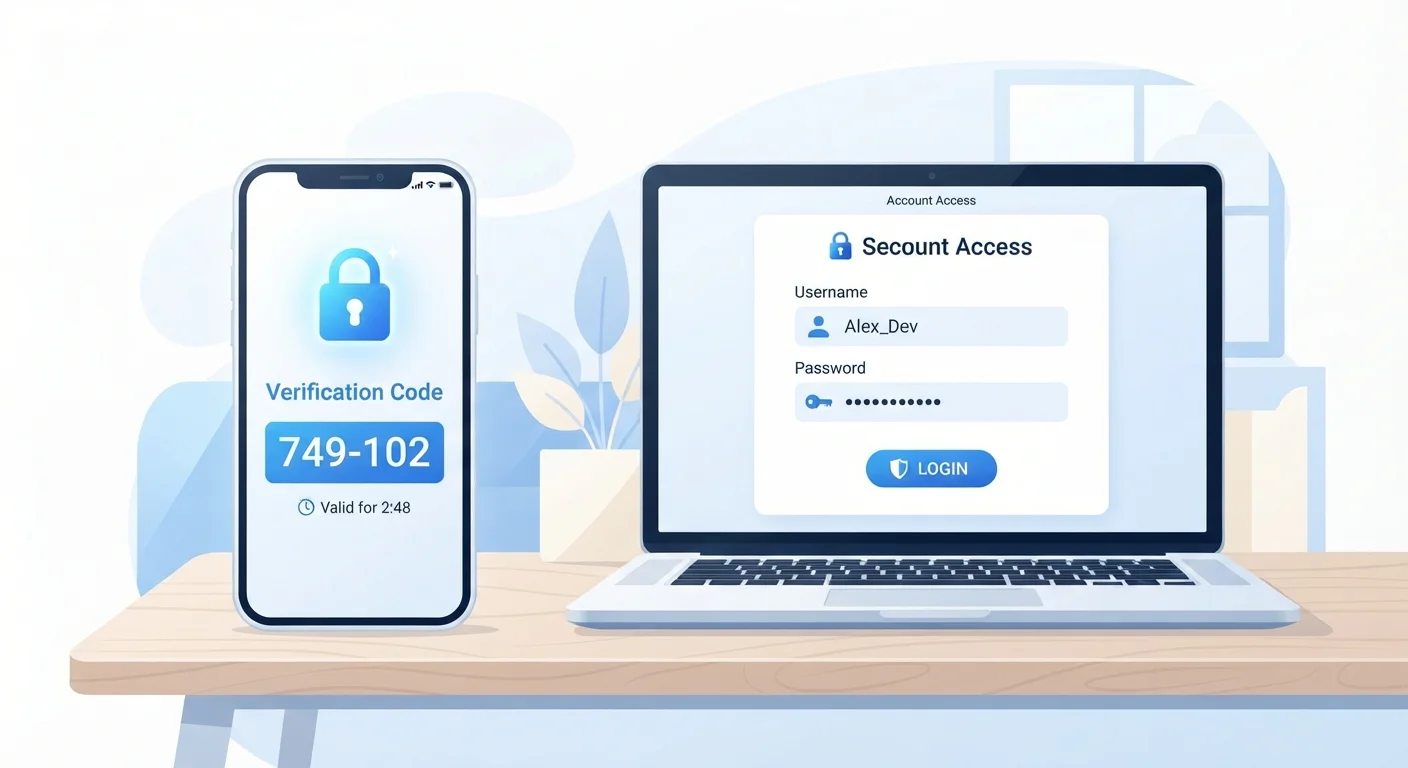
Think of two-factor authentication (2FA) as a double-lock on your front door. Your password is the first lock — but if someone copies that key, they can walk right in. Two-factor authentication adds a second lock that only you can open, usually through your phone or a dedicated app.
When 2FA is active, logging in requires two separate things: something you know (your password) and something you have (a code sent to your phone, for example). Even if a criminal steals your password through a data breach or phishing scam, they still can't get into your account without that second piece.
Two-Factor Authentication (2FA)
A login process that requires two separate proofs of identity — typically a password plus a one-time code — before granting access to an account.
Authenticator App
A smartphone app that generates short, time-sensitive codes used as a second login factor. The codes work without an internet or cell connection.
SMS Code
A one-time numeric code sent to your phone by text message that you enter during login to verify your identity.
Backup Codes
A set of one-time recovery codes provided when you set up 2FA, used to regain access to your account if you can't reach your usual second factor.
Phishing
A scam where someone tricks you into handing over your password or personal information, often by pretending to be a trustworthy organization via email or a fake website.
Hardware Security Key
A small physical device — often plugged into a USB port — that acts as a second factor. It's considered one of the most secure 2FA options available.
If you're just getting started with online accounts, our beginner's guide to getting online covers the basics of staying safe from day one.
The Three Types of Verification Factors
Security experts group verification into three categories. Understanding them helps you choose the right 2FA method.
- Something you know: A password, PIN, or security question answer. This is the first factor in almost every login.
- Something you have: A physical object — your smartphone, a hardware security key, or a card. This is the most common second factor. A one-time code generated by an app or sent by text falls into this category.
- Something you are: A biometric — fingerprint, face scan, or voice recognition. Some services use this as a second factor, especially on mobile devices.
The most widely available options for everyday users are SMS text codes (a six-digit number texted to your phone) and authenticator apps (apps like those from major tech companies that generate time-sensitive codes without needing a cell signal). Authenticator apps are generally considered more secure because text messages can, in rare cases, be intercepted.
Authenticator Apps Work Without Cell Service
One underappreciated advantage of authenticator apps is that they generate codes locally on your device — no internet or mobile signal required. This means they work even in areas with poor reception, making them both more secure and more reliable than SMS codes in many situations.
How to Turn On Two-Factor Authentication
Enabling 2FA looks slightly different on every platform, but the process almost always follows the same pattern:
- Open your account settings. Look for a section labeled Security, Privacy, or Account.
- Find the 2FA or two-step verification option. It may also be called Login Verification or Multi-Factor Authentication.
- Choose your second factor. Select text message, authenticator app, or another available option.
- Follow the on-screen prompts. If you choose an authenticator app, you'll scan a QR code with your phone's camera to link it to your account.
- Save your backup codes. Most services will show you a list of one-time recovery codes. Store these somewhere secure — a printed copy in a safe place works well.
Most major services — including email providers, social media platforms, and financial apps — support 2FA. If you're not sure where to start, your email account is the highest priority: it's often the key to resetting every other account you own.
Don't Skip Saving Your Backup Codes
Backup codes are easy to overlook during setup, but skipping them is a common reason people get permanently locked out of accounts. When a service shows you backup codes, write them down or print them and store them somewhere offline and secure — not just in your email inbox.
Common Questions and Concerns
Many people hesitate to turn on 2FA because they worry it will be inconvenient or that they'll get locked out. Here's a realistic look at both concerns.
Will it slow me down? A little, yes — you'll need to enter a code every time you log in from a new device. Most services let you mark trusted devices so you're only prompted when something new is detected. In practice, the extra step takes about 10 seconds.
What if I lose my phone? This is why backup codes matter. When you set up 2FA, save those codes. You can also add a backup phone number or email address on most platforms. The FAQ at the bottom of this page covers the recovery process in more detail.
For a broader picture of protecting yourself online, see our guide to online privacy from the ground up.
Staying Safer Online: Your Next Steps
Turning on 2FA is one of the most effective single steps you can take to protect your digital life. Once it's active on your important accounts, a few complementary habits will reinforce your security further.
- Use a strong, unique password for every account — a password manager makes this manageable.
- Be cautious on shared or public computers. Our article on keeping your information safe on shared devices explains what to watch out for.
- Check that websites use HTTPS before entering login details. Learn why the padlock icon matters in our piece on HTTP vs. HTTPS.
- Review which apps have access to your accounts. Our guide to app permissions walks you through what those requests really mean.
Security doesn't have to be overwhelming. Each small step you take adds meaningful protection — and 2FA is one of the strongest places to start.
Have I Been Pwned?
A free service that lets you check whether your email address has appeared in known data breaches. Useful for understanding which accounts may need urgent attention.
2FA Directory
A community-maintained directory listing which websites and apps support two-factor authentication and which methods they offer — a quick way to find the 2FA option for any service.
Frequently Asked Questions
Most services provide backup codes when you first set up 2FA — save these in a safe place. You can also use account recovery options like a backup email address or phone number. Contact the service's support team if you're completely locked out.
SMS codes are significantly better than no 2FA at all. However, text messages can be intercepted in rare attacks called SIM-swapping. If you're protecting a high-value account, an authenticator app is a more secure option.
Prioritize accounts that hold sensitive information — email, banking, social media, and anywhere you've stored payment details. Once those are protected, enabling it elsewhere is quick and worthwhile.
The terms are often used interchangeably in everyday settings. Technically, two-factor authentication requires two different types of factor (e.g., password plus physical device), while two-step verification may use two steps of the same type. For practical purposes, both add meaningful protection.
Yes. Many services let you receive codes via a landline call or email. Some also support physical hardware security keys that plug into your computer's USB port — no smartphone required.
The content on this site is for informational purposes only and is not a substitute for professional advice. Always consult a qualified professional for guidance specific to your situation.