

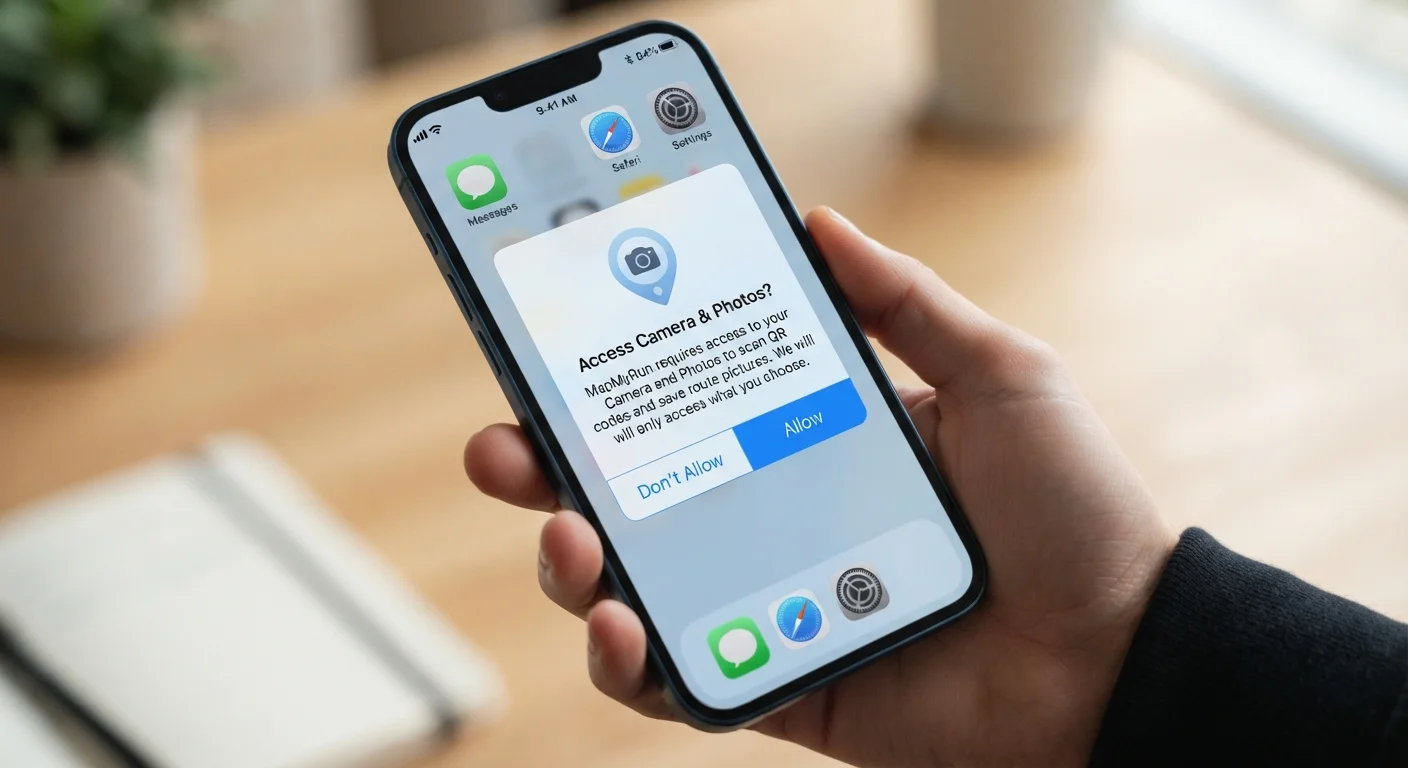
Why App Permissions Deserve More Than a Quick Tap
When an app asks for access to your camera, location, or contacts, that prompt disappears in seconds - and most people tap through it without a second thought. But each permission you grant represents a standing authorization, not a one-time event. The app can use that access repeatedly, often in ways that aren't obvious while you're using it.
Permissions exist because modern smartphones are packed with sensors and personal data. Operating systems like Android and iOS use permission prompts as a gate - a moment where you, the user, decide what an app is allowed to touch. That system only works if you're making deliberate choices rather than reflexive ones.
It's also worth knowing that not every permission request reflects a privacy threat. Many are entirely legitimate. A camera app needs your camera. A weather service needs your location. The goal isn't paranoia - it's proportionality. Understanding what you're granting helps you make those calls confidently.
Use 'Allow Only While Using' When Available
Both Android and iOS offer a middle-ground option for location: 'Allow only while using the app.' This prevents background tracking while still letting the app function when you have it open. Choosing this option wherever it appears is a simple, low-effort way to limit passive data collection without breaking functionality.
For a related look at how different app formats affect what they can access on your device, see our explainer on native, web, and progressive web apps.
How to Review and Manage Your App Permissions
The process is straightforward on both major mobile platforms, and it takes far less time than most people expect. Use the steps below to audit what you've already granted and build a simple framework for future decisions.
What you will need
Open your device's permission settings
On Android, go to Settings > Apps (or Application Manager) and select an app, then tap Permissions. Alternatively, go to Settings > Privacy > Permission Manager to see permissions grouped by type.
On iOS, go to Settings > Privacy & Security. You'll see categories like Location Services, Contacts, Microphone, and Camera - each listing which apps have requested that access.
Identify what each common permission actually accesses
Before deciding what to allow or deny, understand what you're granting:
- Location: Your physical position, which can be precise (GPS) or approximate (cell towers). Can be used to build detailed movement histories.
- Camera: Access to take photos or video through your device lens at any time the app is active.
- Microphone: Ability to record audio. Required for voice calls and voice search, but rarely needed by games or productivity tools.
- Contacts: The names, phone numbers, and email addresses of everyone in your address book - including people who haven't consented to share their data.
- Storage / Files: Read or write access to files on your device, including photos, documents, and downloads.
- Notifications: Permission to send alerts, banners, and sounds. Not a data permission, but worth controlling - see our guide on notifications that actually help vs. ones that interrupt.
Apply the 'does this make sense?' test
For each permission an app has requested or currently holds, ask: Does this app genuinely need this to do its job?
- A navigation app needing location: makes sense.
- A flashlight app needing contacts: does not make sense.
- A food delivery app needing your microphone: worth questioning.
A clear mismatch between the app's function and its permissions is a signal to either deny the request or reconsider whether you want the app installed. This is explored in more depth in our related article on why apps keep asking for permissions they don't seem to need.
Revoke permissions that don't pass the test
Revoking a permission takes seconds and is reversible. On Android, tap the permission toggle within the app's settings to switch it off. On iOS, tap the app's name under the relevant permission category and change access to Never or Ask Next Time.
Start with these high-priority candidates:
- Any app with microphone access that has no voice or audio feature
- Any app with location set to Always when While Using would be sufficient
- Games, utilities, or single-purpose tools that have requested contacts
Schedule a regular permission audit
Device permissions aren't a one-time decision. Apps update, new apps get installed, and your habits change. Set a reminder to review your permission settings every few months - treat it like a brief digital tidy-up.
As part of that audit, consider whether you still actively use each app. Unused apps that retain broad permissions represent unnecessary exposure. Deleting an app removes all its permissions instantly.
For a broader look at how the apps on your device work and what they're doing in the background, the Apps & Software hub is a useful starting point.
Permissions You Grant Persist After Setup
Many people tap 'Allow' during first-time app setup and never revisit that decision. Permissions you grant remain active until you manually revoke them - even if the app updates, changes ownership, or adds new data-sharing practices. Make it a habit to audit permissions periodically, not just at install time.
For more context on the broader landscape of apps living on your device, the guide to your smartphone's built-in apps can help you see the full picture.
The content on this site is for informational purposes only and is not a substitute for professional advice. Always consult a qualified professional for guidance specific to your situation.