

Summary
18 items · 30-90 minutes depending on device type and number of accounts
Why a Factory Reset Isn't Always Enough
Handing off an old device feels simple - hit reset and you're done. In practice, personal data can persist in ways that aren't obvious. Residual account credentials, cached app data, and unencrypted storage can all survive a basic factory reset, especially on older Android hardware. On some devices, forensic tools can recover files even after a wipe if the underlying storage was never encrypted.
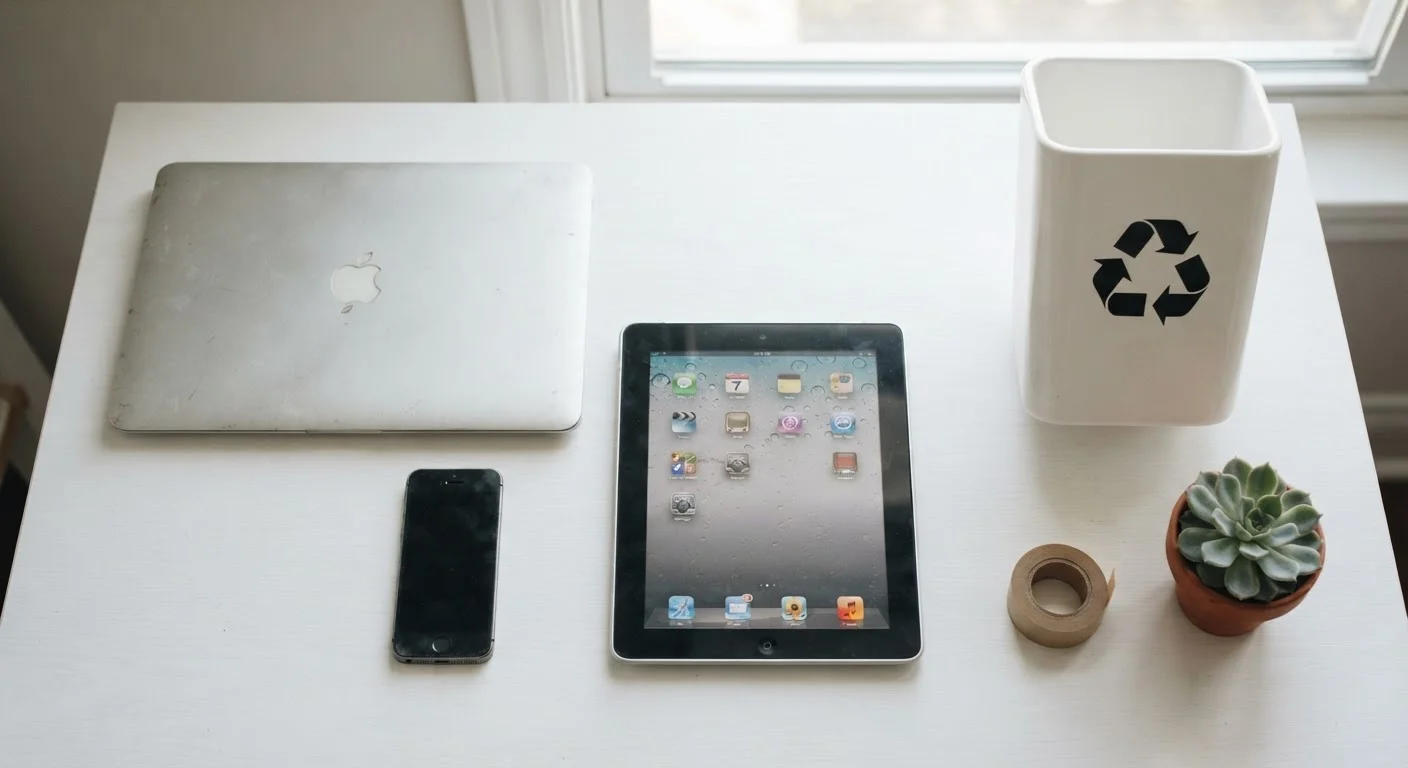
This checklist walks you through every meaningful step before a phone, tablet, or laptop changes hands - whether you're recycling it, trading it in, donating it, or reselling it privately. Work through it in order: back up first, then sign out, then wipe. Skipping steps or reversing that sequence is where most people run into problems.
If you're simultaneously setting up a replacement device, see our guide to transferring data to a new phone so both processes run in parallel without gaps.
Back Up Your Data
Sign Out of Accounts and Services
Prepare Storage and Physical Components
Perform the Factory Reset
Post-Reset Verification
Tools You'll Need Before You Start
You don't need specialist software for most of this checklist, but having the right accounts and credentials ready will save significant time. Review this list before you begin - discovering a forgotten password mid-process can stall the whole workflow.
Cloud backup account (iCloud, Google One, or OneDrive)
Stores a copy of your photos, contacts, and app data before the device is wiped.
Your device passcode or PIN
Required to access the factory reset option and to disable Find My or Find My Device.
Apple ID or Google account credentials
Needed to sign out of your platform account and remove the device from your registered devices list.
External hard drive or USB drive
Provides a secondary backup location for large photo libraries or files you want to keep offline.
SIM card removal tool or a straightened paperclip
Used to eject the SIM card tray before handing the device off.
Authenticator app on your new device
Allows you to transfer 2FA codes before signing out of the authenticator on the old device.
Once you've confirmed access to your cloud account and know your device passcode, you're ready to work through the checklist groups above. If you're also thinking about broader account hygiene, our digital safety audit checklist covers the wider picture beyond individual devices.
Don't Reset Before Disabling Find My or Find My Device
If Find My (iPhone) or Find My Device (Android) is still active when you run a factory reset, the next owner may encounter an Activation Lock that renders the device unusable. Always sign out of your platform account through Settings first - this disables the lock as part of the sign-out process. Skipping this step is the single most common reason recycled and resold devices are returned or rejected by trade-in programs.
Authenticator Apps Need Special Attention
Two-factor authentication apps like Google Authenticator store codes locally on the device and do not automatically sync to a new phone. If you wipe your old device before transferring or noting down these codes, you may be locked out of accounts that require 2FA. Transfer authenticator accounts to your new device first, and verify each one works before proceeding with the wipe.
After the Wipe: A Few Final Checks
Once you've completed the factory reset, take five minutes to verify the device is genuinely clean before it leaves your hands. Power it back on and confirm it presents a fresh setup screen - it should ask for a language and Wi-Fi connection as if it just came out of the box. If it boots straight into your home screen or shows your name anywhere, the reset did not complete successfully.
Also consider the apps you've removed from the device but whose accounts may still hold your data in the cloud. Uninstalling an app and wiping the device doesn't automatically close your account or delete data stored on the provider's servers. Our article on what actually happens when you delete an app explains this distinction clearly.
Finally, if you're picking up a replacement, don't skip its initial security setup. The first-configuration checklist for a new device covers what to lock down before you start using it - steps most people miss.
This article is for general informational purposes only. Steps and menu names may vary by device model, operating system version, and manufacturer. Always consult your device's official documentation for guidance specific to your hardware and software.
The content on this site is for informational purposes only and is not a substitute for professional advice. Always consult a qualified professional for guidance specific to your situation.