

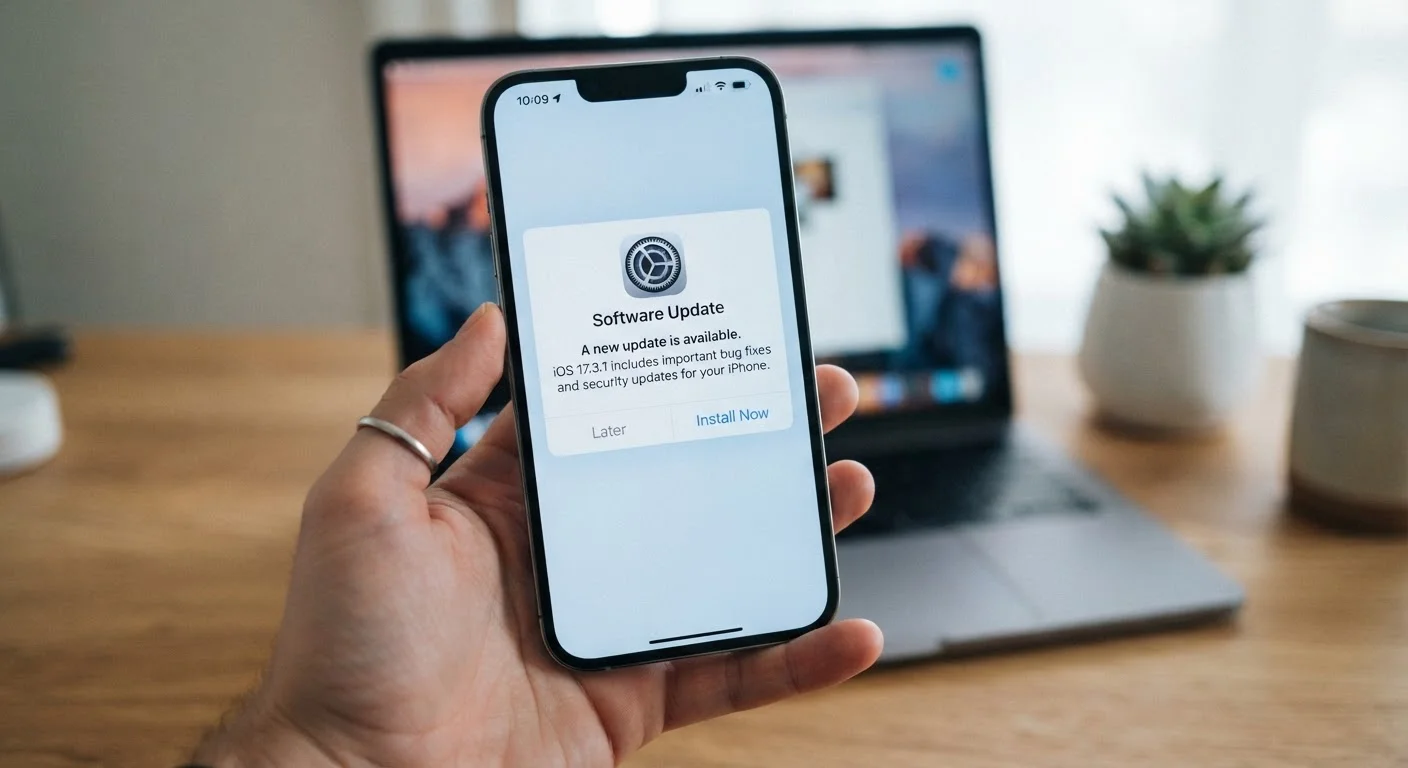
What's Actually Inside a Software Update
Not every update is the same, and treating them all as interchangeable is one of the most common mistakes everyday users make. Updates generally fall into three categories:
- Security patches - fixes for vulnerabilities that attackers could exploit. These are the most time-sensitive updates you'll encounter.
- Bug fixes - repairs for crashes, performance problems, or features that weren't working correctly. Usually low-risk to install.
- Feature updates - new tools, redesigned interfaces, or changed defaults. These carry the highest chance of temporarily disrupting your workflow.
Major operating system releases (like annual iOS or Windows upgrades) typically bundle all three types together, which is precisely why they deserve more caution than a routine app patch. Understanding which type of update you're being asked to install shapes every decision that follows. This knowledge also connects to broader device habits - see keeping your devices running well for longer for a fuller picture of how updates fit into long-term device maintenance.
Automatic Updates: Right Tool, Right Scope
Enabling automatic updates for individual apps is generally low-risk and keeps you protected without extra effort. However, consider keeping automatic major OS upgrades set to manual review - this gives you control over timing and lets you research the release before committing. You can usually find this distinction under your device's Software Update or App Store settings.
When Updates Break Things - and Why
Software runs on an enormous variety of hardware and interacts with countless other applications. Developers test extensively, but no test environment perfectly mirrors every user's setup. Common culprits behind post-update problems include:
- Incompatible third-party apps - an app you rely on daily may not yet support a new OS version.
- Changed settings or permissions - updates sometimes reset customized preferences or alter how apps access your data. Reviewing app permissions after a major update is a smart habit.
- Driver conflicts - on Windows and some Android devices, hardware drivers occasionally conflict with new system code.
- Notifications and workflow disruptions - feature updates frequently change where settings live or how notifications behave, which can quietly affect how you work. If you've fine-tuned your alerts, check out how to distinguish helpful notifications from interruptions after any major update.
Most of these issues are temporary and resolved within a follow-up patch - but they can be disruptive in the short term, especially if you depend on specific tools for work.
A Step-by-Step Framework for Update Decisions
Use this process each time a significant update prompt appears. For minor app patches, steps 1 and 2 are usually sufficient.
Identify what type of update it is
Read the release notes - most platforms (iOS, Android, Windows, macOS) show a summary before you commit. Look for keywords: security fix or vulnerability signals urgency; new features or redesign suggests more caution is warranted. If notes aren't available, a quick web search for the version number usually surfaces a summary.
Check whether a security vulnerability is involved
If the update addresses a security flaw - especially one described as actively exploited - install it as soon as practical. Delaying security patches leaves your device or data exposed. This applies to browsers, mobile operating systems, and productivity apps alike.
For major updates, wait 1-2 weeks if you can
Large feature releases reach millions of devices simultaneously. Early adopters collectively act as a final stress test, and significant bugs tend to surface - and get patched - within the first two weeks. If your device or workflow isn't affected by the security urgency, a short wait lets you benefit from that crowd-sourced feedback without being part of it.
Back up before installing
Before any major OS update, create a current backup. On iPhone, use iCloud Backup or connect to a Mac/PC and back up through Finder or iTunes. On Android, use your manufacturer's backup tool or Google One. On Windows, use File History or create a system restore point. On macOS, run a Time Machine backup. This takes 10-30 minutes and is the single most effective insurance policy available.
Install at a low-stakes time
Don't update mid-workday or immediately before an important task. Choose a time when you can afford 20-60 minutes of downtime and can troubleshoot if needed. Evening installs work well for most people - or use your device's scheduled update window if available.
Review changed settings after the update
Major updates occasionally reset notification preferences, privacy settings, or default apps. Spend five minutes after a major update checking the settings areas most relevant to how you use the device. Pay particular attention to app permissions, which can quietly change between OS versions.
Troubleshooting When an Update Causes Problems
If something breaks after an update, stay calm - most issues have straightforward fixes:
- Restart first. A full reboot resolves a surprising number of post-update glitches.
- Check the app or platform's support page. Developers often acknowledge known issues and publish workarounds quickly after a major release.
- Roll back if possible. iOS and macOS don't offer easy rollbacks, but Windows allows you to revert within a short window after a feature update. Android options vary by manufacturer.
- Restore from backup. If you followed the backup step before updating, you have a safety net. This is the clearest argument for never skipping that step.
Patience also helps. If the problem is widespread, a patch typically arrives within days to weeks. Waiting out a known bug is sometimes the lowest-effort path forward.
The content on this site is for informational purposes only and is not a substitute for professional advice. Always consult a qualified professional for guidance specific to your situation.