

Start here
What Cloud Storage Actually Is
Next
How Your Files Get There
Build your vocabulary
Key Concepts You Should Know
See it in action
Everyday Ways People Use Cloud Storage
Stay informed
What to Watch Out For
What Cloud Storage Actually Is
When you save a photo to your phone, it lives on your phone's internal memory — a tiny chip inside the device. Cloud storage works differently: your file travels over the internet and lands on a remote server, which is essentially a powerful computer maintained by a technology company in a data center somewhere else in the world.
The word "cloud" is just a friendly way to describe that remote infrastructure. As the cloud explained in more depth, it's really just someone else's computer — one that's always on, always connected, and built to store data reliably for millions of people at once.
The practical upside: your files aren't tied to one device. If your phone breaks, your photos still exist. If you switch laptops, your documents are waiting for you. That's the core promise of cloud storage.
How Your Files Get There
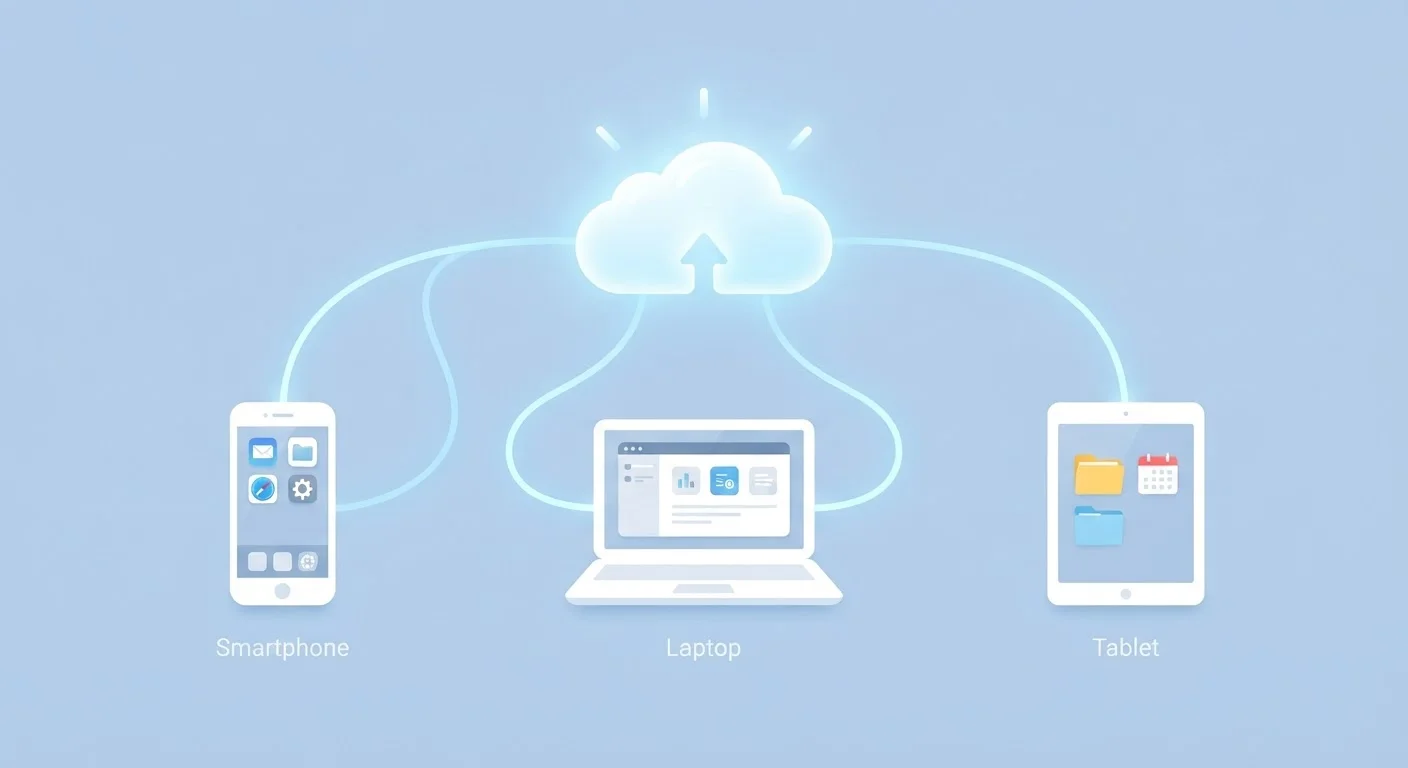
The process is simpler than it sounds. When you save a file to a cloud folder — say, a document or a vacation photo — the app on your device sends a copy of that file over your internet connection to the provider's servers. This is called an upload. When you open the file later on another device, the app fetches it back — that's a download.
Most cloud apps run quietly in the background, so this happens automatically. Edit a document on your laptop, and within seconds the updated version is available on your phone. This automatic updating is called syncing.
Make Syncing Work for You
If you're on a limited mobile data plan, look for a setting that restricts cloud syncing to Wi-Fi only. This prevents large uploads from eating into your cellular data allowance while still keeping everything backed up when you're on a home or work network.
If you're managing multiple devices and juggling lots of files, pairing cloud storage with good organisational habits makes a real difference. See our guide to organising your digital life for practical strategies.
Key Concepts You Should Know
Before diving deeper, it helps to have a few terms clearly defined. Cloud storage has its own vocabulary, and understanding these basics will make everything else click.
Server
A powerful computer designed to store and share data for many users at once. Cloud providers run thousands of these in large facilities called data centers.
Syncing
The automatic process of updating a file across all your connected devices so every version stays current without you having to do it manually.
Storage tier
The level of storage capacity you have with a cloud service. Free tiers come with a set amount of space; paid tiers offer more room for a monthly or annual fee.
Encryption
A method of scrambling data so only authorised parties can read it. Cloud services use encryption to protect your files while they travel over the internet and while they sit on servers.
Two-factor authentication
A security step that requires a second form of verification — like a code texted to your phone — in addition to your password when you log in.
Offline access
A feature that lets you designate certain cloud files to be stored locally on your device so you can open them even without an internet connection.
Everyday Ways People Use Cloud Storage
Cloud storage isn't just for tech-savvy users — it quietly powers tasks millions of Americans do every day:
- Photo backups: Smartphones can automatically send every new photo to the cloud, so a cracked screen doesn't mean lost memories.
- Document access across devices: Start a letter on your work computer and finish it on your tablet at home, picking up exactly where you left off.
- File sharing: Instead of emailing large attachments, you can send a link to a cloud folder. The recipient downloads only what they need.
- Travel document copies: Storing scanned copies of your passport or insurance card in the cloud means you can pull them up anywhere. Our guide on digital vs. physical document copies while traveling explores when cloud copies are enough and when paper backups still matter.
You may already be using cloud storage without realising it — common examples include the photo libraries and document apps that come pre-installed on most smartphones and computers.
Already Using It Without Knowing
If your phone has ever offered to "back up photos" or you've opened a document on two different devices seamlessly, you've likely already used cloud storage. Many operating systems enable it by default — check your device's settings to see exactly what's being saved and where.
What to Watch Out For
Cloud storage is genuinely useful, but a few considerations are worth keeping in mind:
- Storage limits
- Free tiers typically offer a modest amount of space. Once you hit the cap, new files won't sync until you either delete something or upgrade to a paid plan.
- Internet dependency
- Without a connection, you can't upload new files or access ones not marked for offline use. On a slow connection, large files take longer to sync.
- Privacy settings
- Files are private by default, but check any sharing links you create. A link set to "anyone with the link" can be forwarded to people you didn't intend to reach.
- Account security
- Your cloud files are only as secure as your login. Use a strong, unique password and turn on two-factor authentication — a second verification step beyond your password — whenever it's available.
For context on how cloud storage interacts with your browser's local data, our article on what happens when you clear your cache is a helpful companion read. Both the cloud and your local cache are ways data gets stored — but they serve very different purposes.
Don't Confuse Syncing With Backing Up
If you delete a file from your cloud folder, that deletion syncs to all your devices — meaning the file disappears everywhere. Some services keep deleted files recoverable for a limited window (often 30 days), but don't rely on this as a safety net. Keep a separate backup of anything truly irreplaceable.
Frequently Asked Questions
They're related but not identical. A backup copies everything on your device at a point in time. Cloud storage keeps specific files continuously synced so you can access them anywhere. Many cloud services do both, but it's worth checking your settings to confirm what's actually being saved.
Generally, yes — you need an internet connection to upload or download files from the cloud. However, many cloud apps let you mark specific files for offline access, so they're available even without a signal.
Reputable cloud services use strong encryption to protect your data in transit and at rest. That said, no system is completely risk-free. Use a strong, unique password and enable two-factor authentication for an extra layer of protection.
Policies vary by provider, but most will downgrade you to a free tier, locking new uploads until you reduce your storage usage. They typically give you a grace period before deleting anything — check your provider's terms for specifics.
A USB drive stores files physically on hardware you carry. Cloud storage keeps files on remote servers you reach over the internet, meaning you can't lose access by dropping a device. The trade-off is that cloud access requires a connection.
Yes — most cloud services let you generate a shareable link or invite specific people to view or edit a file. You usually control permission levels, such as whether the recipient can only view or also make changes.
The content on this site is for informational purposes only and is not a substitute for professional advice. Always consult a qualified professional for guidance specific to your situation.