

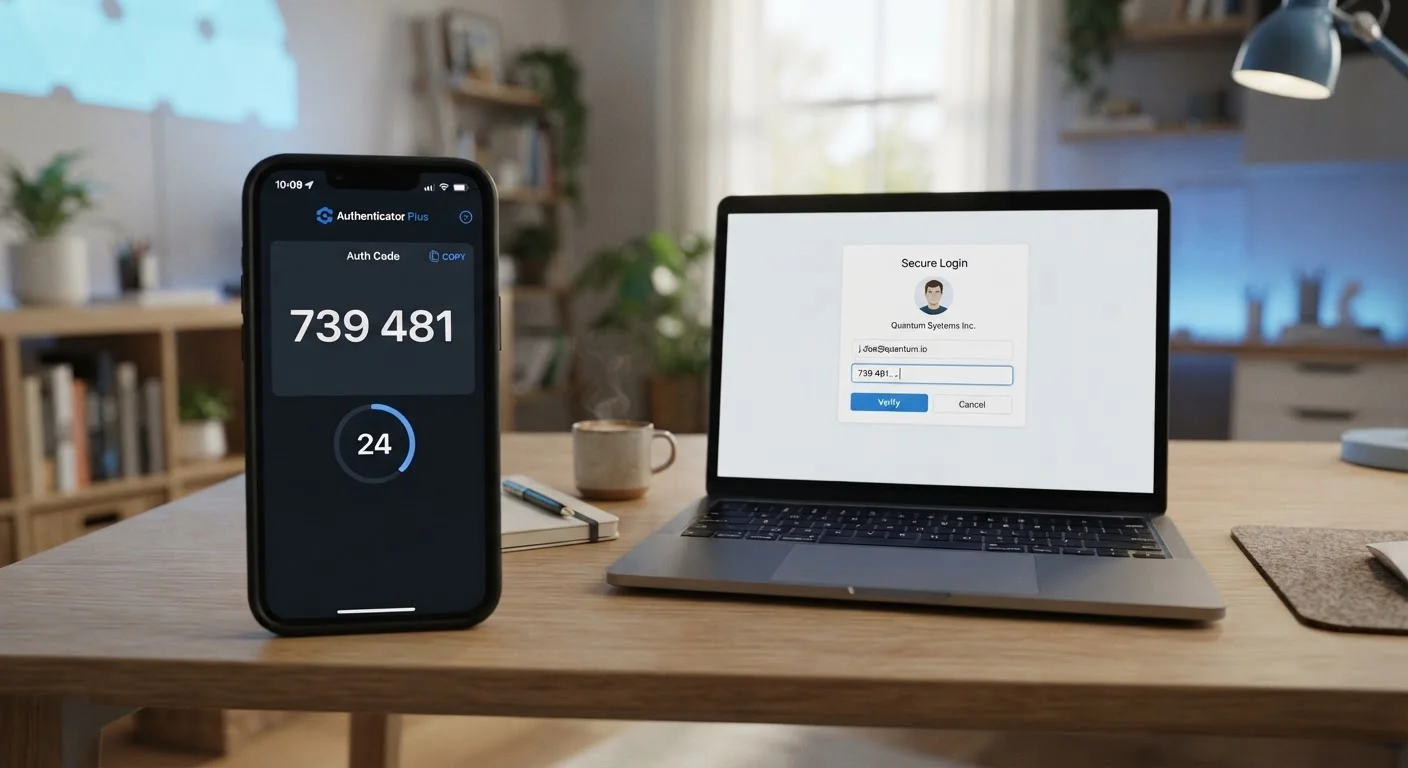
Why Your Password Isn't Enough on Its Own
Passwords are the most familiar form of online security - but they have a fundamental weakness. They can be stolen through phishing emails, exposed in data breaches, or cracked using automated tools that try thousands of combinations per second. According to the CISA, compromised credentials are among the most common causes of account takeovers.
The problem isn't just weak passwords. Even a long, unique password can end up in the wrong hands if a website you use suffers a data breach. Once an attacker has your credentials, a password alone offers no further resistance. That's where two-factor authentication changes the equation.
For guidance on building stronger passwords alongside 2FA, see what a strong password actually looks like.
80%+
Of breaches involving compromised credentials
Microsoft has reported that the overwhelming majority of account compromises involve weak or stolen passwords, reinforcing the case for a second layer of protection.
99.9%
Of automated attacks blocked by MFA
Microsoft's identity security research found that accounts with multi-factor authentication enabled blocked the vast majority of automated credential-stuffing and password-spray attacks.
How Two-Factor Authentication Works
When you enable 2FA, logging in becomes a two-step process. First, you enter your username and password as usual. Then the service asks you to prove your identity a second time using a different method. Only after both steps succeed does the account open.
The second factor typically falls into one of these forms:
- SMS codes: A one-time numeric code sent to your phone via text message. Simple and widely available, though not the most secure option.
- Authenticator apps: Apps such as those provided by major platform developers generate time-sensitive codes every 30 seconds directly on your device. No internet connection is required once set up.
- Push notifications: Some services send a prompt to a trusted app or device asking you to approve or deny the login attempt.
- Hardware security keys: A physical device you plug in or tap to your phone that cryptographically confirms your identity. This is the strongest option but requires carrying the key.
Most people will find authenticator apps the best balance of security and convenience for everyday use.
Setting Up 2FA on Your Accounts
Enabling 2FA takes only a few minutes on most platforms. The setting is usually found under Account Security, Privacy, or Sign-In Settings - look for terms like "Two-Step Verification" or "Two-Factor Authentication."
Here's the general process:
- Go to your account's security settings.
- Select the option to enable two-factor authentication.
- Choose your preferred second factor (authenticator app recommended).
- Follow the on-screen instructions to link your device or app.
- Save any backup codes the service provides in a secure location.
Start with your email account and any financial accounts - these carry the highest risk if compromised. From there, work through social media and any account that stores payment information.
2FA pairs well with other security habits. The habits that keep everyday users secure online covers the broader set of practices worth building into your routine.
Save Your Backup Codes Right Away
When you enable 2FA, most services offer a set of one-time backup codes. Write them down or store them in a secure location - a printed copy kept at home works well. These codes let you regain access if you lose your phone or change your number, so don't skip this step.
Common Concerns - and Why They Shouldn't Stop You
The most frequent reason people don't enable 2FA is that it feels like a hassle. In practice, most services remember trusted devices, so you'll only be asked for the second factor when logging in from a new device or browser - not every single time.
Another concern is being locked out. This is manageable: save your backup codes when you first set up 2FA, and register a second trusted device or backup email where the service supports it.
If you're also considering how to manage the growing number of passwords that go alongside 2FA, password managers: what they do and what they don't offers a balanced look at that option. And if you're configuring a new device, setting up a new device securely before you start using it walks through what to configure from the start.
No security measure is completely foolproof, but 2FA meaningfully raises the barrier for the vast majority of account compromise attempts. For most people, the small amount of friction involved is far outweighed by the protection it provides.
Frequently Asked Questions
Most services provide backup codes when you first set up 2FA - store these somewhere safe, such as a printed document or a secure notes app. You can also use account recovery options like a backup email address or identity verification with the service's support team.
SMS codes are much better than no second factor at all. However, they can be intercepted through SIM-swapping attacks, where a fraudster convinces your carrier to transfer your number. For higher-value accounts, an authenticator app is a more secure alternative.
Authenticator apps generate codes locally on your device without needing internet or cell service, so they work offline. SMS-based 2FA, however, requires a signal to receive the text message.
Prioritize accounts with the most at stake: email, banking, and any account tied to payment information. Your email is especially important because it's often used to reset other passwords, making it a master key of sorts.
Yes, most services let you disable 2FA through your account security settings at any time. That said, doing so removes a significant layer of protection, so it's generally worth keeping it on.
The content on this site is for informational purposes only and is not a substitute for professional advice. Always consult a qualified professional for guidance specific to your situation.