

Why Laptop Ports Still Matter
Despite years of wireless innovation, physical ports remain one of the most practical features on any laptop. They determine which monitors, drives, accessories, and chargers you can use without adapters. Yet most buyers focus on processor speed and screen size, leaving ports as an afterthought - until something doesn't plug in.
This guide covers every common port you're likely to find on a consumer laptop, what each one actually does, and when you'd realistically use it. For a broader breakdown of device terminology, see our plain-language device glossary.
| USB-A Max Speed (USB 3.2 Gen 2) | 10 Gbps (USB Implementers Forum specification) |
| Thunderbolt 4 Max Data Speed | 40 Gbps (Intel Thunderbolt 4 specification) |
| HDMI 2.1 Max Resolution | 10K (HDMI Forum specification) |
| USB-C Charging Max (USB PD 3.1) | 240W (USB Power Delivery 3.1 specification) |
| Thunderbolt Identifier | Lightning bolt icon (⚡) |
| SD Card Slot Common Standard | UHS-I / UHS-II (SD Association specification) |
USB-A, USB-C, and Thunderbolt: The Connector Family
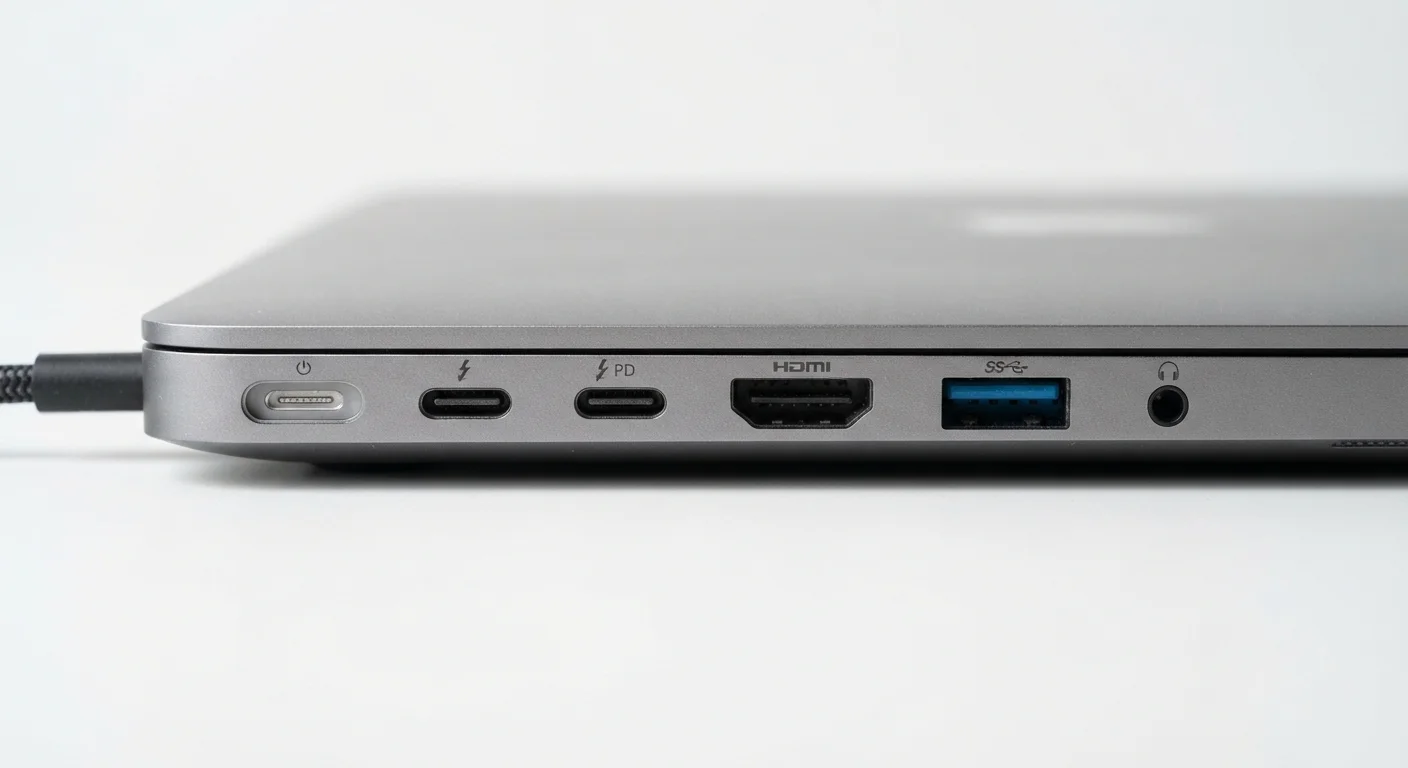
USB-A is the rectangular connector most people grew up with. It handles data transfer and charges accessories like mice, keyboards, and flash drives. Speeds vary by generation - USB 3.0 ports (marked with a blue tab inside) transfer data significantly faster than older USB 2.0 ports.
USB-C is the small, oval connector appearing on nearly every new laptop. One port can carry power, video output, and data simultaneously - though what a specific USB-C port actually supports depends on the laptop. Not all USB-C ports are equal: some only handle charging, while others support video output or high-speed data.
Thunderbolt (versions 3 and 4 are most common today) uses the same physical USB-C shape but adds significantly more capability. A Thunderbolt 4 port can drive two 4K monitors, transfer data at up to 40 Gbps, and charge the laptop - all at once. Thunderbolt ports are typically marked with a lightning bolt icon. If your laptop has one, it's among the most versatile connectors available.
Video, Audio, and Storage Ports
HDMI (High-Definition Multimedia Interface) sends audio and video together to an external monitor or TV. Most laptops include a standard HDMI port or a smaller Mini HDMI version. HDMI 2.0 and 2.1 support higher resolutions and refresh rates than older 1.4 ports - worth checking if you use a high-resolution external display.
DisplayPort is less common on consumer laptops but frequently found on workstation-class machines. It supports higher refresh rates than HDMI at equivalent resolutions, making it popular for users connecting to high-refresh-rate monitors. Mini DisplayPort uses a smaller connector with the same function.
SD card slots read memory cards directly from cameras, action cameras, and drones. Laptops aimed at creative professionals often include a full-size SD slot; budget and ultraportable models may omit it or offer a Micro SD slot instead.
The 3.5 mm headphone jack provides analog audio output for headphones and earbuds, and often doubles as a combo input for headsets with a microphone. Some thin laptops have removed it entirely in favor of USB-C audio adapters.
Ethernet and Legacy Ports
Ethernet (RJ-45) is the wide, rectangular port for wired internet connections. Wired connections are generally faster and more stable than Wi-Fi, which matters for video calls, gaming, or large file transfers. Many thin laptops omit Ethernet to save space, making a USB-C-to-Ethernet adapter necessary.
VGA (Video Graphics Array) is an older analog video connector you'll mainly find on older or budget laptops. It doesn't carry audio and is limited to lower resolutions compared to HDMI or DisplayPort. If you're connecting to a projector in an older conference room, VGA may still be relevant.
Kensington Lock slot isn't for data or power - it's a small, reinforced hole where you attach a physical cable lock to secure the laptop to a desk. Common on business laptops used in shared office environments.
Understanding what's on your laptop helps you avoid buying unnecessary adapters - or informs what to look for when choosing a new machine. If you're weighing a laptop against a tablet and ports are part of that decision, our tablet vs. laptop guide walks through the tradeoffs clearly.
The content on this site is for informational purposes only and is not a substitute for professional advice. Always consult a qualified professional for guidance specific to your situation.