

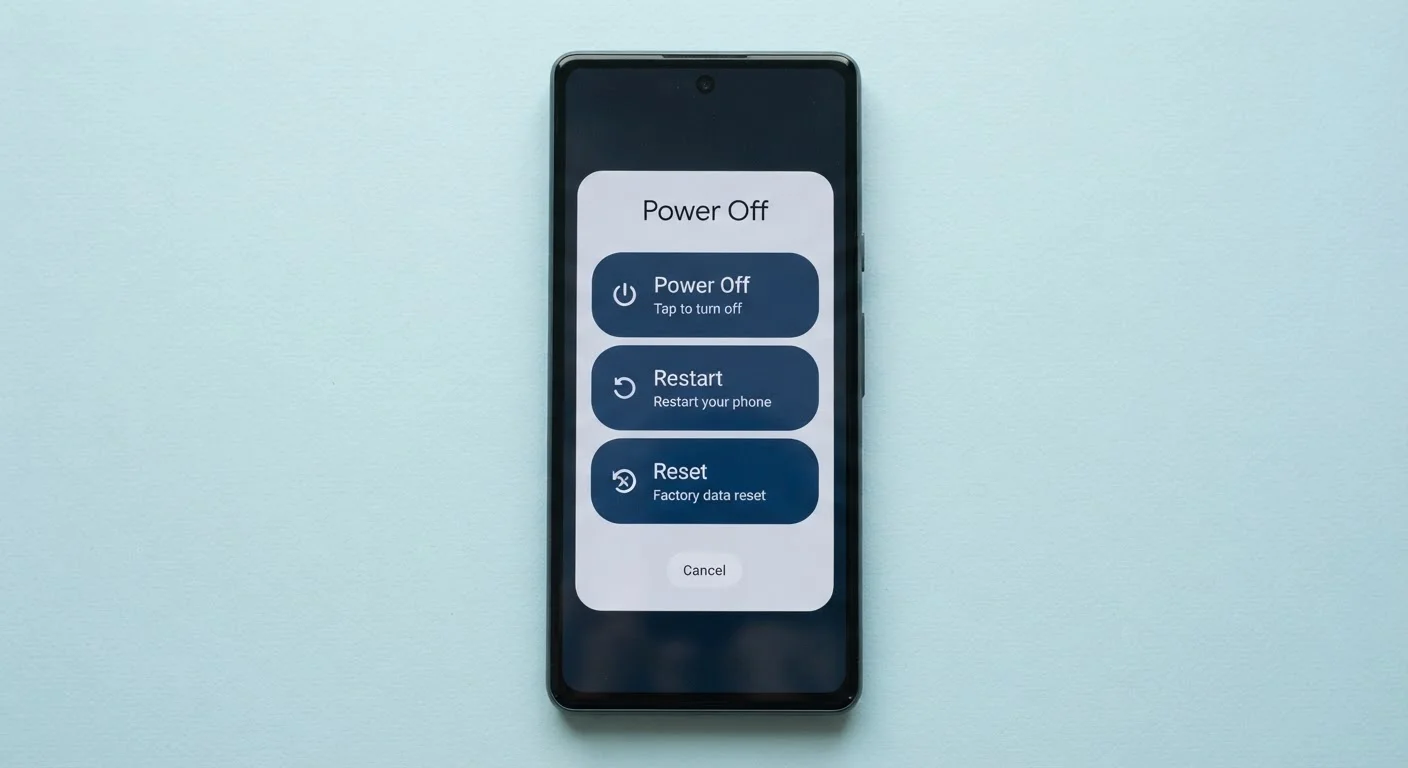
Option A
Restart (Reboot)
The quick, safe refresh every device needs regularly.
Best for: Fixing minor glitches, clearing temporary memory, and applying software updates without touching any personal data.
Option B
Factory Reset
The nuclear option — a full wipe back to out-of-the-box state.
Best for: Preparing a device for resale, resolving deep software corruption, or starting completely fresh when nothing else works.
What a Restart Actually Does
When you restart (also called a reboot) your phone or computer, the device powers down completely and then starts back up. That's it. Your photos, contacts, apps, and files stay exactly where they are.
What does change is your device's temporary memory, known as RAM. RAM holds short-term data — things like open browser tabs, background app processes, and cached operations. Over time, this memory fills up, which is one reason devices can feel slow or unresponsive. A restart flushes that temporary data and gives your system a clean slate to work from.
Restarting also applies any software or security updates that have been waiting in the background and closes rogue processes that may be quietly draining your battery. If your device is behaving oddly — freezing, running hot, or lagging — a restart is almost always the right first step. For more on why phones slow down over time, see our guide to phone slowdown.
~30%
Performance issues resolved by a simple restart
Device manufacturers and support documentation commonly note that a significant share of reported glitches clear up after a reboot, without any further intervention.
Weekly
Recommended restart frequency for smartphones
Consumer technology support guides generally suggest restarting a smartphone at least once a week to keep RAM clear and updates applied.
What a Factory Reset Actually Does
A factory reset — sometimes labeled "Reset all settings," "Erase all content," or "Factory data reset" depending on your device — is a fundamentally different operation. It wipes the device back to the state it was in when it left the manufacturer. Every photo, message, downloaded app, saved password, and personal account is removed.
On most smartphones and laptops, this process takes several minutes and cannot be undone. Once complete, the device behaves as though it just came out of the box. You'll need to sign in, reinstall apps, and restore any content from a backup.
Factory resets are appropriate in specific situations: selling or donating a device, fixing severe software corruption, or troubleshooting a persistent problem that simpler fixes haven't resolved. They are not a routine maintenance step. Understanding your device's settings options in general can help you navigate these choices confidently — our settings screen decoder is a useful reference.
| Criterion | Restart (Reboot) | Factory Reset |
|---|---|---|
| Personal data deleted? | No | Yes — all of it |
| Apps removed? | No | Yes |
| Settings wiped? | No | Yes |
| RAM / temp memory cleared? | Yes | Yes |
| Backup required first? | No | Strongly recommended |
| Time to complete | Under 2 minutes | 5–20 minutes |
| Can be undone? | N/A | No |
| Good for routine use? | Yes | No — last resort only |
Before You Reset: The Step You Cannot Skip
The most important rule before performing a factory reset is simple: back up your data first. A reset is permanent, and there is no undo button once it begins.
On an iPhone, iCloud Backup (found under Settings → → iCloud → iCloud Backup) can save your photos, messages, and app data wirelessly. On Android, Google's backup feature under Settings → System → Backup does similar work. On a Windows PC, use the built-in Backup and Restore tool or copy critical files to an external drive or cloud storage. On a Mac, Time Machine or iCloud Drive are common options.
If you're unsure whether your backup is current, check the timestamp before proceeding. A backup from six months ago may not include recent photos or messages you'd want to keep.
"Reset All Settings" Is Not a Factory Reset
On iPhones and some Android devices, there's an option labeled "Reset All Settings" that sounds alarming but only restores system preferences — like Wi-Fi passwords, display brightness, and notification settings — to their defaults. Your photos and apps are not affected. Always read the on-screen description carefully before confirming any reset option, since the wording varies by device and operating system version.
Restarting, by contrast, requires no preparation at all — just make sure you're not in the middle of saving a file, and you're good to go. It's also worth knowing that actions like clearing your cache fall somewhere in between — they remove stored temporary data from apps but don't touch your personal files or settings.
The content on this site is for informational purposes only and is not a substitute for professional advice. Always consult a qualified professional for guidance specific to your situation.